List.SelectPositions in Power BI and Power Query

With this new custom function “List.SelectPositions” you can easily select items from a list by just passing a list of their positions within it as the parameter.

What it does

Say you have a list with numbers {1..5} and want to select the 1st, 4th and 5th element from it. Then you can pass these positions to the function as another list: {0, 3, 4}.

ListSelectPositions({1..5}, {0, 3, 4}) will return: {1,4,5}

You see that I’ve decided to follow the zero-based counting principle here, that you find throughout M in the query editor. If you don’t like that, you can use the optional 3rd parameter to let it start to count from 1 instead:

ListSelectPositions({1..5}, {1, 4, 5}, 1) will return {1, 4, 5}

But if you have entered positions that don’t exist, the function will return an error in their positions by default:

ListSelectPositions({1..5}, {1, 4, 5}) will return {2, 5, Error}

because there is no 6th element (you’ve omitted the 3rd parameter that allows you to start counting with 1).

But you can change this behaviour as well through the last optional 4th parameter: Setting it to 0 will fill the missing positions with null like this:

ListSelectPositions({1..5}, {1, 4, 5}, null, 0) will return {2, 5, null}

and setting it to 1 will eliminate it and shorten the list like this:

ListSelectPositions({1..5}, {1, 4, 5}, null, 1) will return {2, 5}

These additional error-handling-options of the 4th parameters are useful for dealing with badly formatted data and if you want to learn more about it, just let me know in the comments so that I can prioritize it.
Function code

Read more

Import text from pdf files in Power BI

While Power BI will soon provide functions to import tables from pdf-files, there might be occasions when you actually need to import text from pdf files (in unstructured form). With a little help from R in Power BI you can do exactly that. (And don’t worry: No need to learn R here: The necessary R-code is already included in my function … Read more

Remove repeating characters from a string in Power BI and Power Query

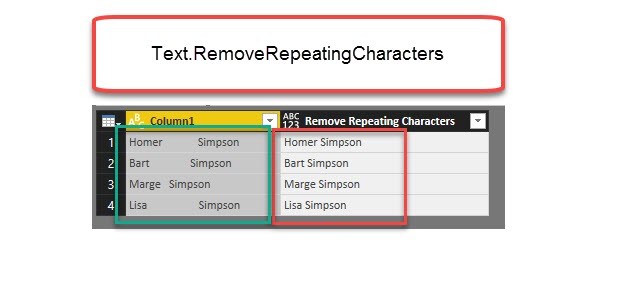
Repeating spaces often cause problems when cleaning up your data. My new function “Text.RemoveRepeatingCharacters” can come to the rescue here. Imagine you have a table like this: Challenge To further work with this data, it would often be best if there was just one space between the words and not many. The following function will do this for you: … Read more

Date.DatesBetween to retrieve dates between 2 dates in Power BI and Power Query

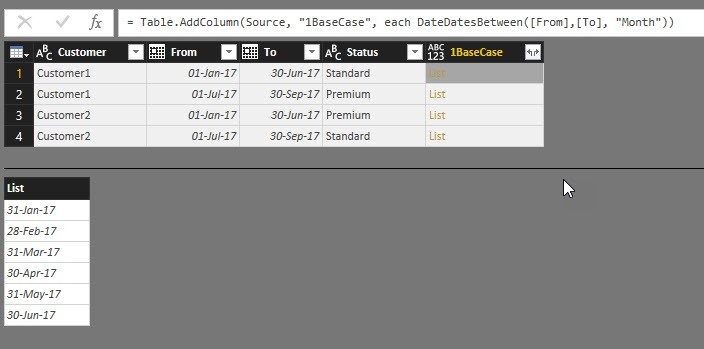
Today I’m sharing a handy function with you that allows you to retrieve all or just a couple of dates between 2 given dates: Date.DatesBetween.

Usage

This function takes 3 parameters:

  1. From- or Start-date
  2. To- or End-date
  3. A selection of ONE of these intervals: Year, Quarter, Month, Week or Day

All dates will be created at the end of the chosen interval: So if you want to analyse events with a duration for example, where you want to transform your data to show one day per (monthly) event, this function generates month-end-dates for every month within the timespan. Please not that if the To-/End-date is within a month, the last element of the list will NOT be that day, but the day of the end of that month.

The default-value for the 3rd parameter is “Day”, so if you omit the specification, the function will return a list of all days in between.

Read more

Create a function library in Power BI using M-Extensions

Having the ability to use own M-function the same way than native functions in Power BI and Excel has been one of my biggest wishes for quite some time. So I was more than amazed to see Frank Tonsen’s comment showing a way to do exactly this in PowerBI, that has been available for almost half a year now: M-Extensions as part of the custom connectors.

Unlike custom connectors who show up in the import-dialogue and provide a custom tailored option for importing data or creating queries, M-Extensions don’t show up explicitly anywhere in Power BI: They just do their M(agic) job to make the functions that you’ve defined in them accessible, as if they were inbuilt native functions: Type their name into the formula bar like this (1):

And enjoy the function description (2: if you’ve specified it in the definition, which is optional):

Simplest example

  1. Your functions: Number.Double and Number.Triple
  2. Combined with the keyword “shared” and separated by “;”
  3. Prefix by “section MyLibrary” gives this text:
section MyLibrary;
shared Number.Double = (Number as number) =>
2 * Number;
shared Number.Triple = (Number as number) =>
3 * Number;


How to make M-Extensions work

Read more