Bug in Power BI R Scripts “package … was installed with different internals”

Today I spent many hours hunting an R-script error in Power BI and before Steph Locke came up with a solution for this, I came across a couple of posts and heard of other people, having the same problem. This blogpost is to make distribution of the solution a bit easier and to hopefully to help other folks with the same problem in the future.

The Problem

When running R-scripts in Power BI, I got all sorts of error-messages who all had one thing in common: They were complaining about one or more packages being installed by an R version with different internals.

Read more

Writing data to GitHub using Power Query only

You shouldn’t do it …

Generally it’s a very bad idea to execute commands in Power Query that write out data to a source, as these commands might be executed multiple times (https://blog.crossjoin.co.uk/2018/10/07/power-query-write-data/)

… unless … maybe ?

However, as with most good rules, there are exceptions. I leave it to you to decide whether my use case here is a valid candidate for it. It doesn’t execute the code twice, because I execute the query only from the query editor and none of the other queries is referencing its results. But please see for yourself – Writing data to GitHub using just Power Query:

The video

Read more

Import text from pdf files in Power BI

While Power BI will soon provide functions to import tables from pdf-files, there might be occasions when you actually need to import text from pdf files (in unstructured form). With a little help from R in Power BI you can do exactly that. (And don’t worry: No need to learn R here: The necessary R-code is already included in my function … Read more

How to create and use an R-function-library in Power BI

Edit 10-10-2017: There is also a (simpler) way to run a custom function library described here: http://www.thebiccountant.com/2017/10/06/create-a-function-library-in-power-bi-using-m-extensions/ . If you go that route, the only point of interest in the article might be how to create your function library automatically.

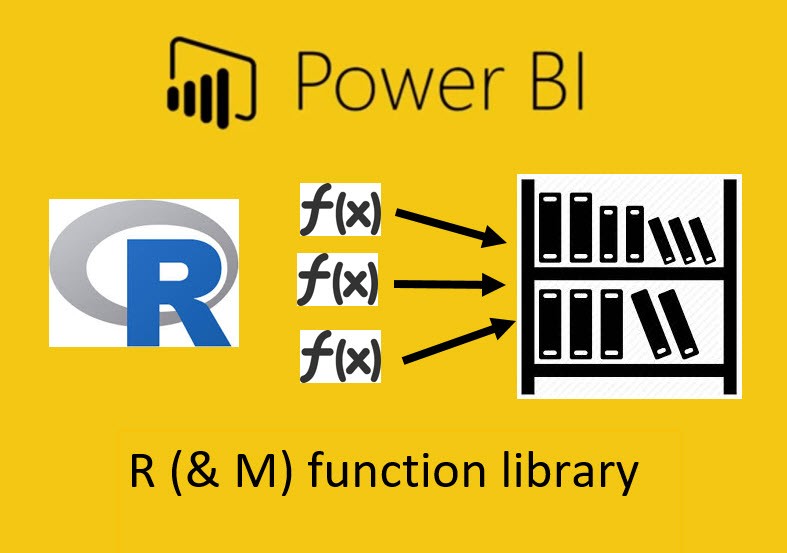
Once you’ve discovered the huge potential R gives you to expand your analytical toolbox in Power BI (check some tips & tricks in my previous blogpost if you haven’t already), you might wish to have all your awesome functions conveniently at hand when designing new solutions. And thanks to M, there’s actually nothing easier than that: R-function-library in a record (which works just the same for M-functions 🙂 )

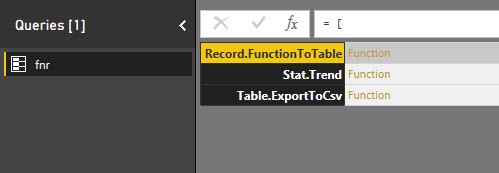
Put your functions into a record (fnr) with the function name as the field name and the function itself as the value: One query to hold them all (and not cluttering your editor pane) and ready to use as if they were native functions:

R-function-library

Use

will export content of my query “Actuals” to csv-file on my desktop.

  1. fnr is the name of the record. You can give it your own name of course, I prefer to keep this as short as possible.
  2. followed in square bracket is the name of the function (record field name)
  3. in ordinary brackets you have the function arguments just like in standard M (record value)

Create record

Read more

Tips and Tricks for R scripts in the query editor in Power BI

Especially if you are new to R, there are some things one needs to know to successfully run R-scripts in the query editor of Power BI. I will share them here along with some tricks that made my R-life in Power BI easier:

How to get started – useful links:

Input:

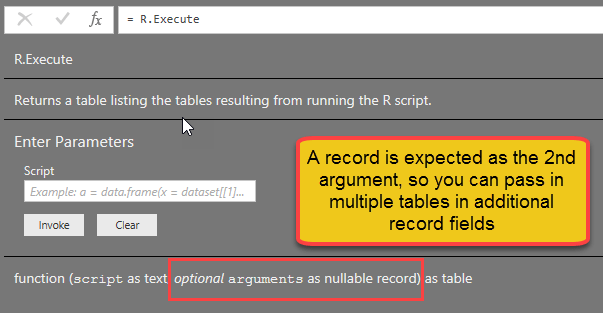
You can feed multiple tables into the R-script

If you click the icon “R script”, the table from the previous step will automatically be passed as the “dataset” to the R-script. So if you don’t fill in any R-code, this will happen:

image

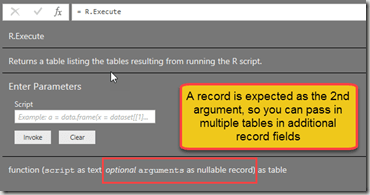
But if you need the content from other tables as well, you just add them into the square brackets like this:

image

“Documentation” looks like this:

image

You can use parameters in the R-script

Apart from tables, you can also use text strings as parameters in the script. They need to be inserted into the code with preceeding “& and trailing &”:

RExportCsv= R.Execute(“write.csv(dataset,” “&CsvExportPath&” “)”,[dataset=Actuals])

Beware that they must be text. So if you want to pass a number, wrap it into Text.From(…).

You cannot use anything else apart from tables and parameters in the R-script

Well, at least I haven’t managed it Smile

R-life gets easy-peasy if you use M-functions for your R-script

Read more