How Power Query can return clickable hyperlinks with friendly names to Excel

When you use Power Query as an Excel-automation-tool rather than just to feed the data model, you might want to return clickable hyperlinks that carry friendly names. This doesn’t work out of the box, but with a little tweak it will be fine:

The trick

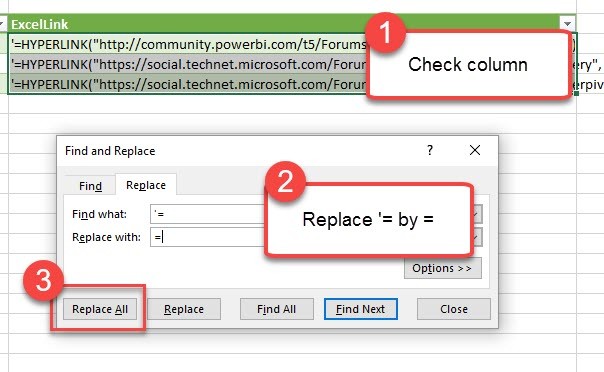
Return a text-string that contains the Excel (!)-formula for hyperlinks, preceded by an apostrophe  ‘ . After the data has been loaded to the sheet, check the column and replace ‘= by = to activate your Excel-formula:

Activate the HYPERLINK formula by replacing ‘= with =

You can then format the column to “Hyperlink”:

Read more

How to create and use an R-function-library in Power BI

Edit 10-10-2017: There is also a (simpler) way to run a custom function library described here: http://www.thebiccountant.com/2017/10/06/create-a-function-library-in-power-bi-using-m-extensions/ . If you go that route, the only point of interest in the article might be how to create your function library automatically.

Once you’ve discovered the huge potential R gives you to expand your analytical toolbox in Power BI (check some tips & tricks in my previous blogpost if you haven’t already), you might wish to have all your awesome functions conveniently at hand when designing new solutions. And thanks to M, there’s actually nothing easier than that: R-function-library in a record (which works just the same for M-functions 🙂 )

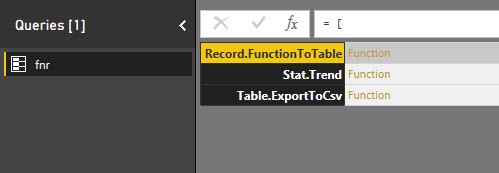
Put your functions into a record (fnr) with the function name as the field name and the function itself as the value: One query to hold them all (and not cluttering your editor pane) and ready to use as if they were native functions:

R-function-library

Use

will export content of my query “Actuals” to csv-file on my desktop.

  1. fnr is the name of the record. You can give it your own name of course, I prefer to keep this as short as possible.
  2. followed in square bracket is the name of the function (record field name)
  3. in ordinary brackets you have the function arguments just like in standard M (record value)

Create record

Read more

Tips and Tricks for R scripts in the query editor in Power BI

Especially if you are new to R, there are some things one needs to know to successfully run R-scripts in the query editor of Power BI. I will share them here along with some tricks that made my R-life in Power BI easier:

How to get started – useful links:

Input:

You can feed multiple tables into the R-script

If you click the icon “R script”, the table from the previous step will automatically be passed as the “dataset” to the R-script. So if you don’t fill in any R-code, this will happen:

image

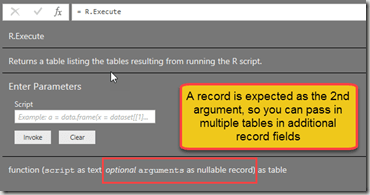
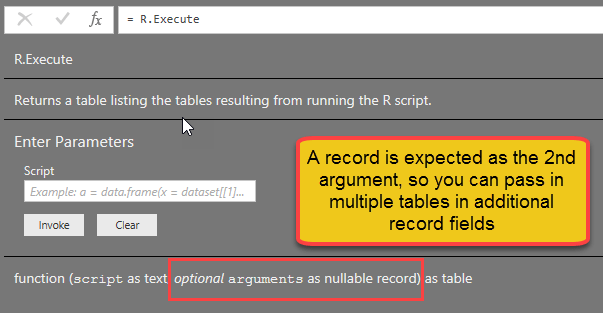
But if you need the content from other tables as well, you just add them into the square brackets like this:

image

“Documentation” looks like this:

image

You can use parameters in the R-script

Apart from tables, you can also use text strings as parameters in the script. They need to be inserted into the code with preceeding “& and trailing &”:

RExportCsv= R.Execute(“write.csv(dataset,” “&CsvExportPath&” “)”,[dataset=Actuals])

Beware that they must be text. So if you want to pass a number, wrap it into Text.From(…).

You cannot use anything else apart from tables and parameters in the R-script

Well, at least I haven’t managed it Smile

R-life gets easy-peasy if you use M-functions for your R-script

Read more

Should we pipe M?

“Just because you could doesn’t mean you should”… So I’m asking the Power Query and M fans & experts here if we “should” pipe M: Background: With M you can nest your expressions like in Excel to group commands that belong together. But this has some disadvantages like: Reading: the execution order of the functions doesn’t match … Read more

New M-function: Table.TransformColumnTypesToFirstRowsTypes for PowerBI and PowerQuery

The following function automatically transforms all columns to the types that have been detected in the cells of its first row. Provided they come as: Number, date or text (but you can add additional type conversions if you need them.). It also has some rough edges: If the first value is empty, the column will … Read more

How to expand a column that cannot be expanded in Power BI and Power Query in Excel

Especially when working with JSON-data, you might end up with a column that has elements of mixed types in it. The expand column – arrows will be missing, but some elements still need to be expanded, like here: But there is an easy way to fix it: Transform to expandable column Table.TransformColumns(Source, {{“Column1”, each if Value.Is(_, type list) … Read more