Improve File Import from SharePoint in Power BI and Power Query

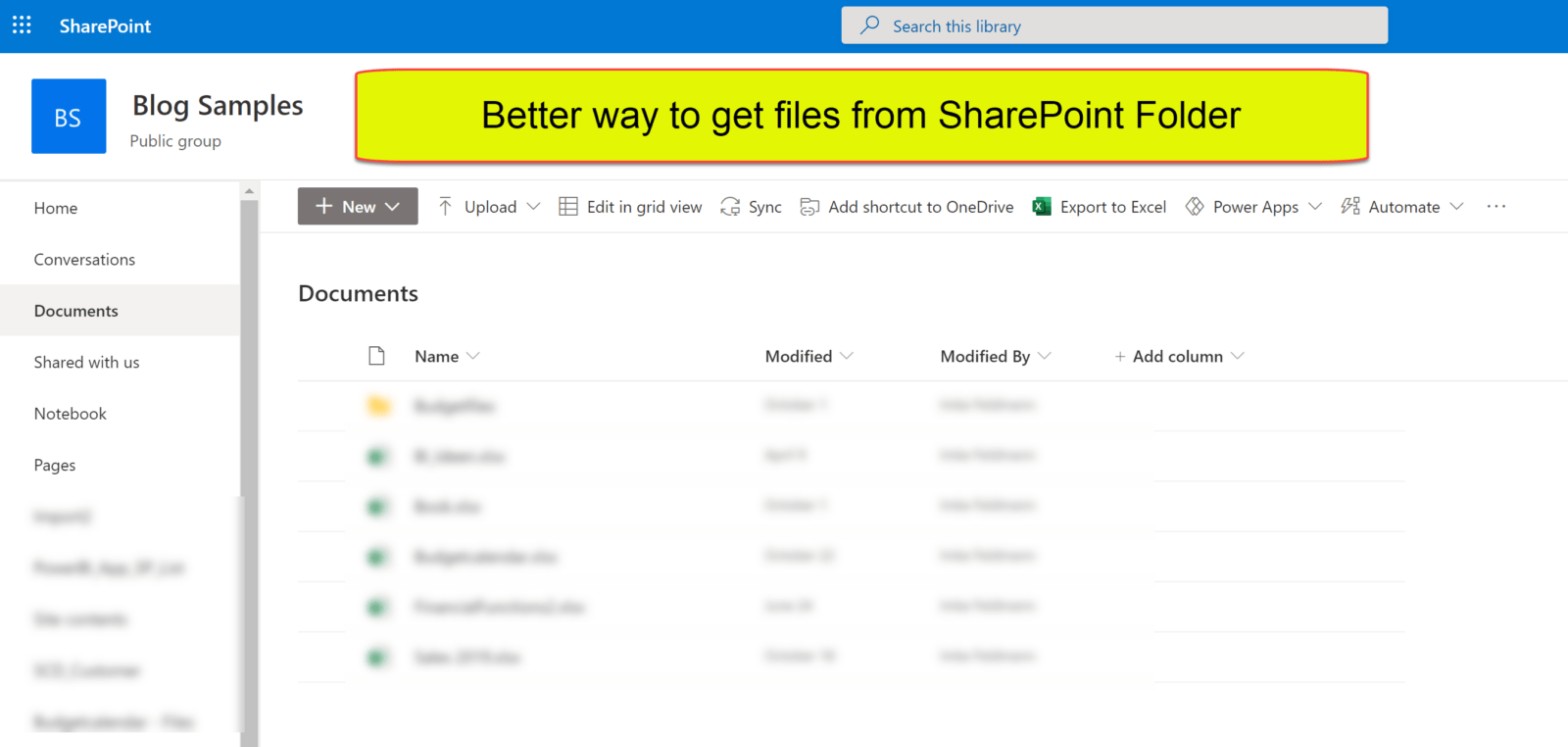
When you use the UI to import files from SharePoint, you’ll end up with the Sharepoint.Files function. This function can become fairly or super slow when you use it on large SharePoint sites. This is due to the fact, that it will retrieve metadata for ALL files that lie on the site. Meaning: The root site whose URL you have to enter as the function argument.

First fix attempt

The optional parameter ApiVersion = 15 can speed things up (if available in your tenant). Check the Sharepoint.Files function syntax in your query and add a 2nd function parameter like so:
= “https://……linkToYourSharepointSite…”, [ApiVersion = 15])

Alternative

A faster alternative to the SharePoint.Files function is the function SharePoint.Contents. This function will read much less metadata and that seems to make it faster. But it comes with a different navigation experience: It basically only allows to select files from one folder.

Therefore I’ve created 2 functions that overcome those limitations.

Read more

Import text from pdf files in Power BI

While Power BI will soon provide functions to import tables from pdf-files, there might be occasions when you actually need to import text from pdf files (in unstructured form). With a little help from R in Power BI you can do exactly that. (And don’t worry: No need to learn R here: The necessary R-code is already included in my function … Read more

Remove repeating characters from a string in Power BI and Power Query

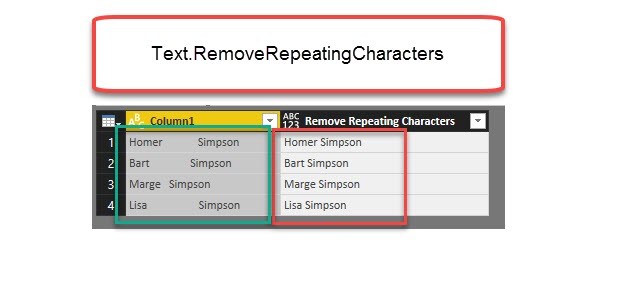
Repeating spaces often cause problems when cleaning up your data. My new function “Text.RemoveRepeatingCharacters” can come to the rescue here. Imagine you have a table like this: Challenge To further work with this data, it would often be best if there was just one space between the words and not many. The following function will do this for you: … Read more

Create a function library in Power BI using M-Extensions

Having the ability to use own M-function the same way than native functions in Power BI and Excel has been one of my biggest wishes for quite some time. So I was more than amazed to see Frank Tonsen’s comment showing a way to do exactly this in PowerBI, that has been available for almost half a year now: M-Extensions as part of the custom connectors.

Unlike custom connectors who show up in the import-dialogue and provide a custom tailored option for importing data or creating queries, M-Extensions don’t show up explicitly anywhere in Power BI: They just do their M(agic) job to make the functions that you’ve defined in them accessible, as if they were inbuilt native functions: Type their name into the formula bar like this (1):

And enjoy the function description (2: if you’ve specified it in the definition, which is optional):

Simplest example

  1. Your functions: Number.Double and Number.Triple
  2. Combined with the keyword “shared” and separated by “;”
  3. Prefix by “section MyLibrary” gives this text:
section MyLibrary;
shared Number.Double = (Number as number) =>
2 * Number;
shared Number.Triple = (Number as number) =>
3 * Number;


How to make M-Extensions work

Read more

How to open a complex JSON record in Power BI and Power Query

Today I’ll show you a very useful technique how to deal with a JSON record that contains a wild mixture of different elements like this: If you click on one of the expandable elements, their content will be shown, but you’ll loose all the “surrounding” information (metadata) that is visible now. This is often an … Read more