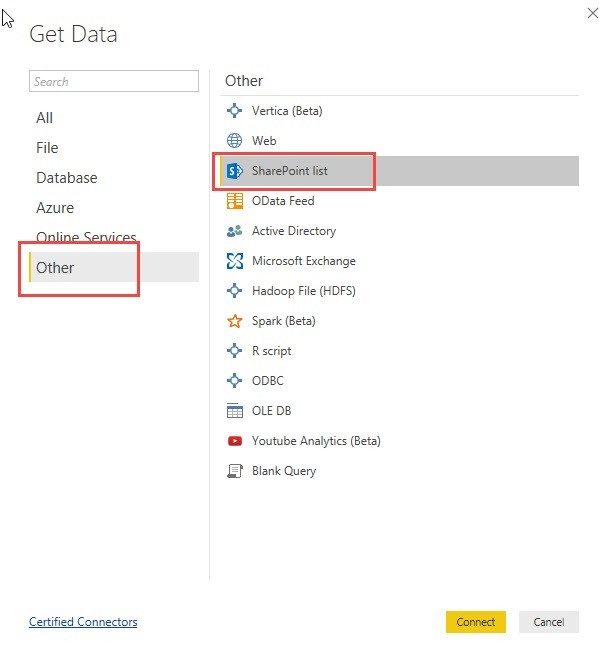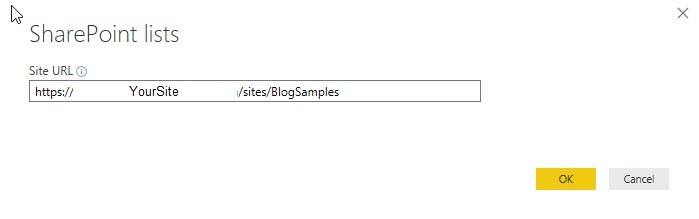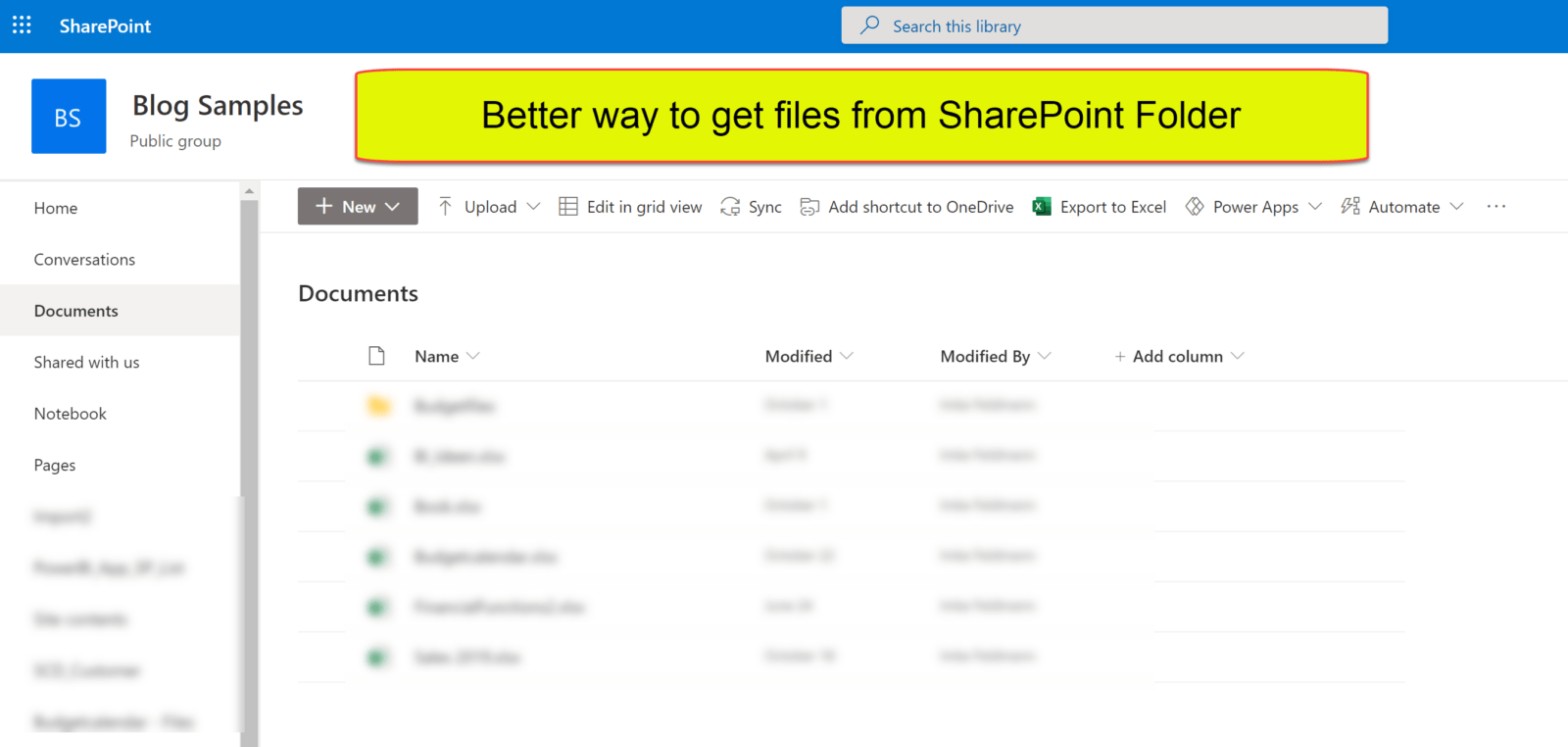
When you use the UI to import files from SharePoint, you’ll end up with the Sharepoint.Files function. This function can become fairly or super slow when you use it on large SharePoint sites. This is due to the fact, that it will retrieve metadata for ALL files that lie on the site. Meaning: The root site whose URL you have to enter as the function argument.
First fix attempt
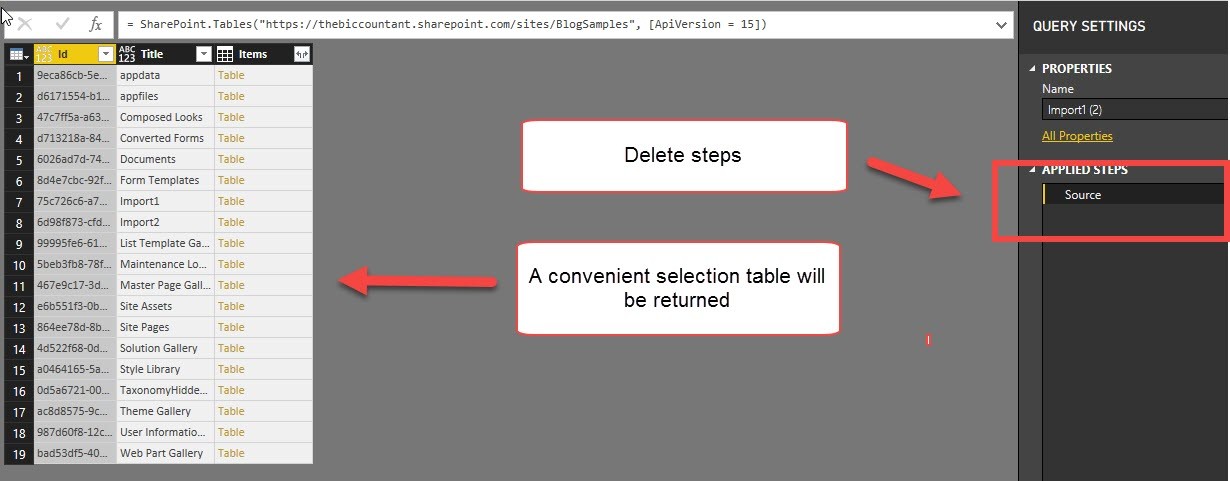
The optional parameter ApiVersion = 15 can speed things up (if available in your tenant). Check the Sharepoint.Files function syntax in your query and add a 2nd function parameter like so:
= “https://……linkToYourSharepointSite…”, [ApiVersion = 15])
Alternative
A faster alternative to the SharePoint.Files function is the function SharePoint.Contents. This function will read much less metadata and that seems to make it faster. But it comes with a different navigation experience: It basically only allows to select files from one folder.
Therefore I’ve created 2 functions that overcome those limitations.