Improve File Import from SharePoint in Power BI and Power Query

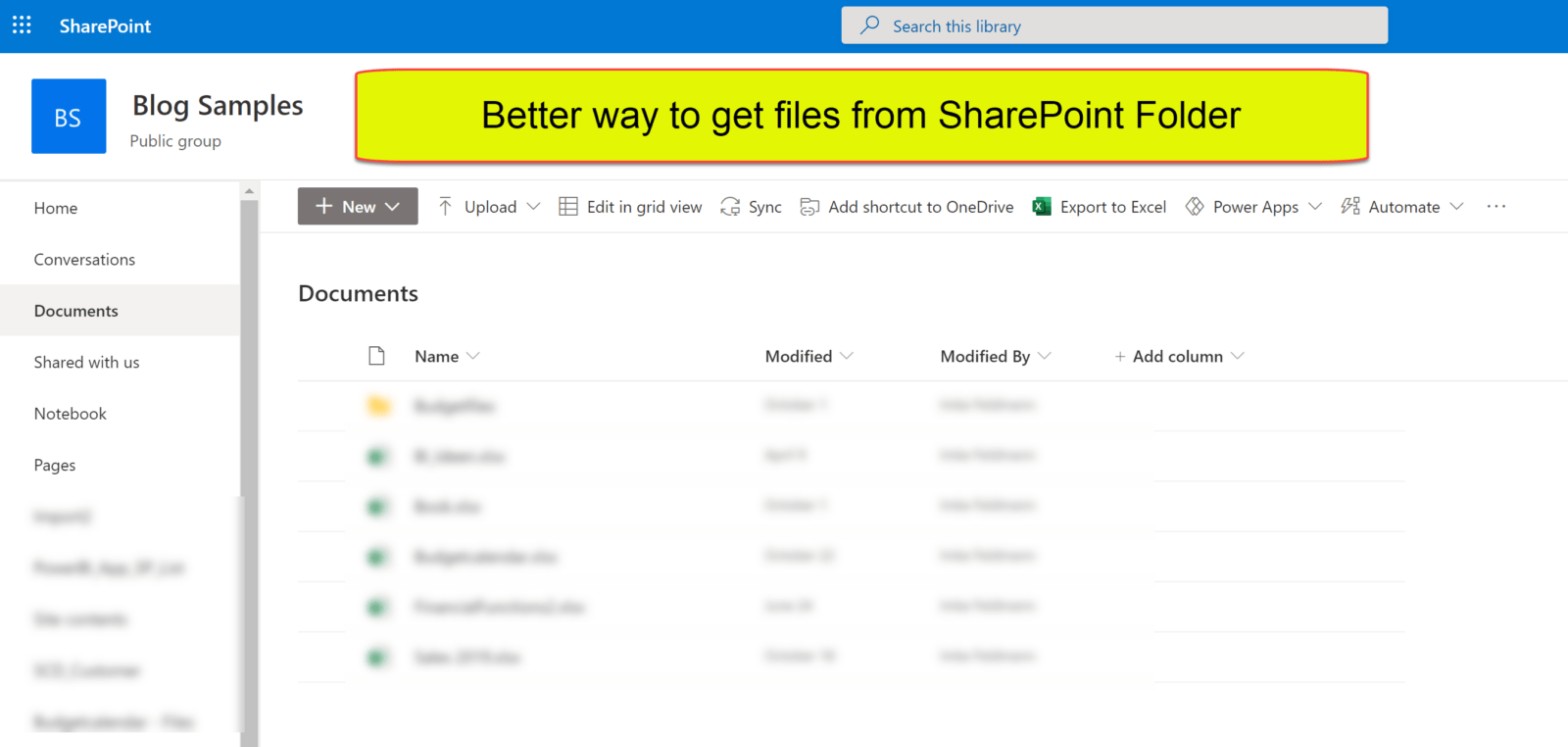
When you use the UI to import files from SharePoint, you’ll end up with the Sharepoint.Files function. This function can become fairly or super slow when you use it on large SharePoint sites. This is due to the fact, that it will retrieve metadata for ALL files that lie on the site. Meaning: The root site whose URL you have to enter as the function argument.

First fix attempt

The optional parameter ApiVersion = 15 can speed things up (if available in your tenant). Check the Sharepoint.Files function syntax in your query and add a 2nd function parameter like so:
= “https://……linkToYourSharepointSite…”, [ApiVersion = 15])

Alternative

A faster alternative to the SharePoint.Files function is the function SharePoint.Contents. This function will read much less metadata and that seems to make it faster. But it comes with a different navigation experience: It basically only allows to select files from one folder.

Therefore I’ve created 2 functions that overcome those limitations.
Read more

Remove repeating characters from a string in Power BI and Power Query

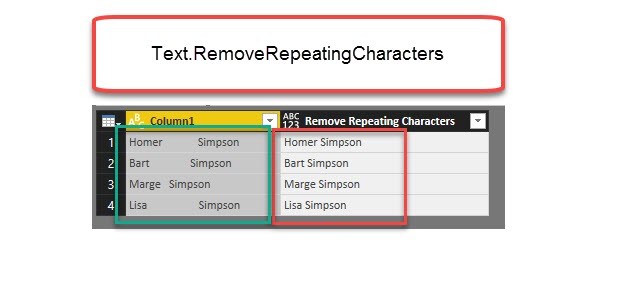
Repeating spaces often cause problems when cleaning up your data. My new function “Text.RemoveRepeatingCharacters” can come to the rescue here. Imagine you have a table like this: Challenge To further work with this data, it would often be best if there was just one space between the words and not many. The following function will do this for you: … Read more

How Power Query can return clickable hyperlinks with friendly names to Excel

When you use Power Query as an Excel-automation-tool rather than just to feed the data model, you might want to return clickable hyperlinks that carry friendly names. This doesn’t work out of the box, but with a little tweak it will be fine:

The trick

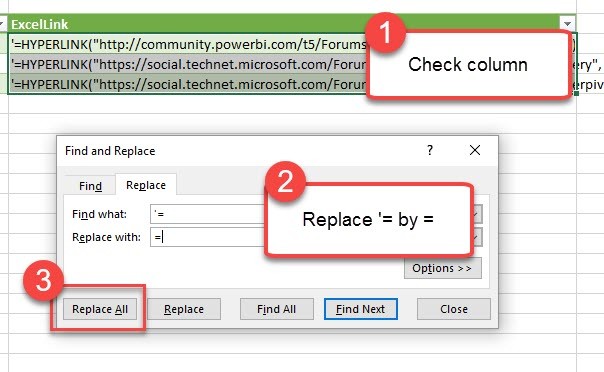
Return a text-string that contains the Excel (!)-formula for hyperlinks, preceded by an apostrophe  ‘ . After the data has been loaded to the sheet, check the column and replace ‘= by = to activate your Excel-formula:

Activate the HYPERLINK formula by replacing ‘= with =

You can then format the column to “Hyperlink”:

Read more

How to open a complex JSON record in Power BI and Power Query

Today I’ll show you a very useful technique how to deal with a JSON record that contains a wild mixture of different elements like this: If you click on one of the expandable elements, their content will be shown, but you’ll loose all the “surrounding” information (metadata) that is visible now. This is often an … Read more

Tips and Tricks for R scripts in the query editor in Power BI

Especially if you are new to R, there are some things one needs to know to successfully run R-scripts in the query editor of Power BI. I will share them here along with some tricks that made my R-life in Power BI easier:

How to get started – useful links:

Input:

You can feed multiple tables into the R-script

If you click the icon “R script”, the table from the previous step will automatically be passed as the “dataset” to the R-script. So if you don’t fill in any R-code, this will happen:

image

But if you need the content from other tables as well, you just add them into the square brackets like this:

image

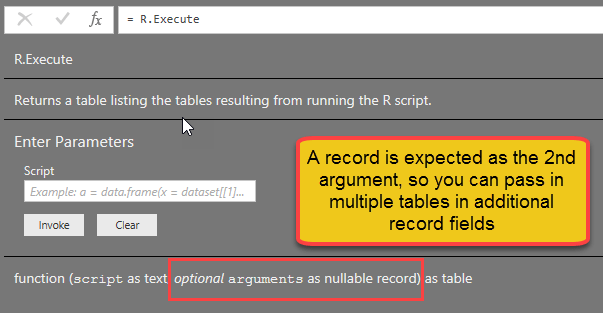
“Documentation” looks like this:

image

You can use parameters in the R-script

Apart from tables, you can also use text strings as parameters in the script. They need to be inserted into the code with preceeding “& and trailing &”:

RExportCsv= R.Execute(“write.csv(dataset,” “&CsvExportPath&” “)”,[dataset=Actuals])

Beware that they must be text. So if you want to pass a number, wrap it into Text.From(…).

You cannot use anything else apart from tables and parameters in the R-script

Well, at least I haven’t managed it Smile

R-life gets easy-peasy if you use M-functions for your R-script

Read more