Table.TransformColumns – alternative in PowerBI and PowerQuery in Excel

This article shows a trick for a little problem that annoyed me for quite some time: How to get Table.TransformColumns transforming the values of a column with a reference to a value (from the same row) of another column?

1 Replace text by a value from another column

So instead of adding a new column where the “*” is replaced by the value from column “WhildcardValue”, I just want to perform the replacement-operation in the original “Text”-column, so that I don’t have to rename and delete the other columns later:

So far, I always ended up fighting with Table.TransformColumns-function and got quite frustrated because I couldn’t find a way to reference the (row-) value of the other column. As it turns out, I was fighting the wrong target here, because Table.ReplaceValue is actually the saviour for this challenge:

1.1 Check column “Text” -> Transform -> Replace Values
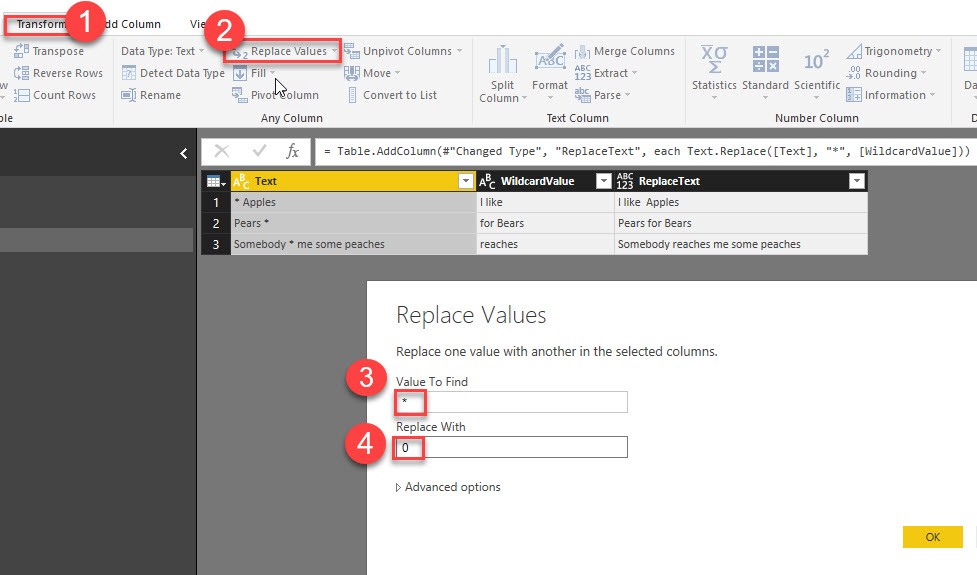
So in (4) we just filled in a dummy-value, which we’re going to replace with a reference to the desired column: “each [WildcardValue]” like this:
Read more

SQL-query folding bug still alive and sucking in PowerBI and PowerQuery in Excel

Edit: There is currently no interest at Microsoft to change the current behaviour: http://community.powerbi.com/t5/Issues/Bug-Query-folding-not-working-with-non-SQL-datasource/idi-p/225100#M11611 . I found that this workaround works also pretty well (faster in most cases), as long as your filter-tables are not too long: http://community.powerbi.com/t5/Desktop/Parameterized-SQL-Query-with-query-folding/td-p/171503 Are your SQL queries that filter with a non-SQL-table slow in PowerBI and PowerQuery in Excel? Then … Read more

Unpivot by number of columns and rows in PowerBI and PowerQuery in Excel

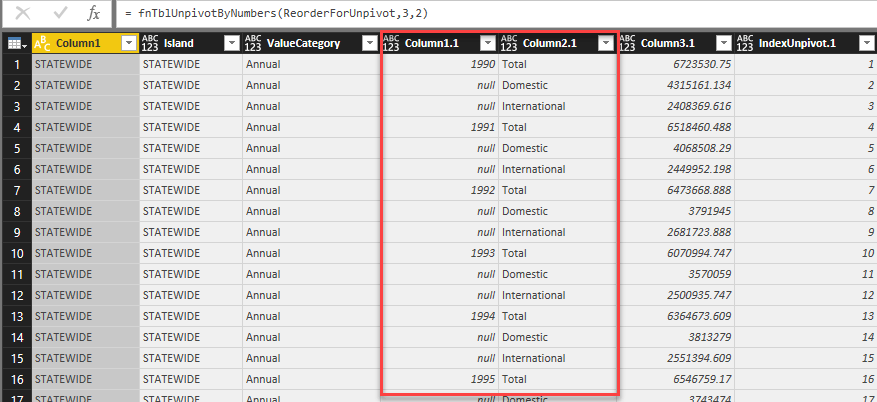
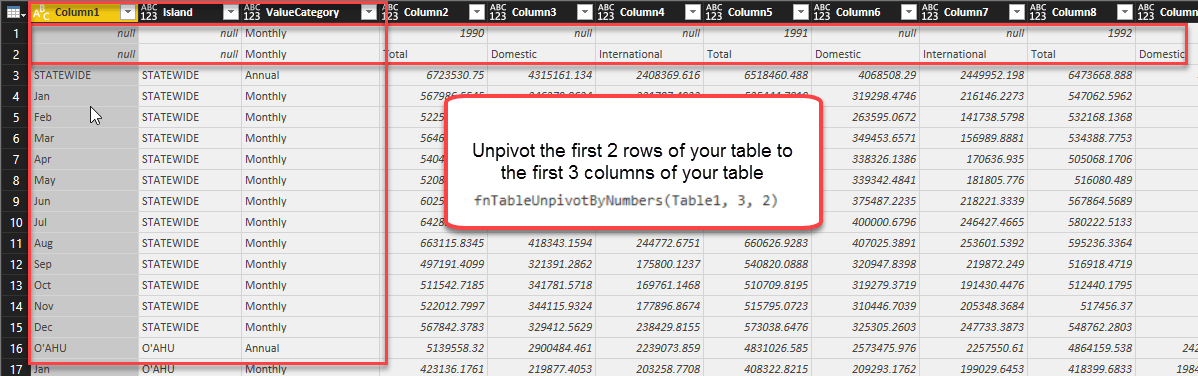
Today I’m sharing with you one of my killer M(inja)-strikes: Unpivot a table by simply passing the number of columns that shall remain (at the left side of the table) and the number of rows (who hold the header-information) as parameters to them.

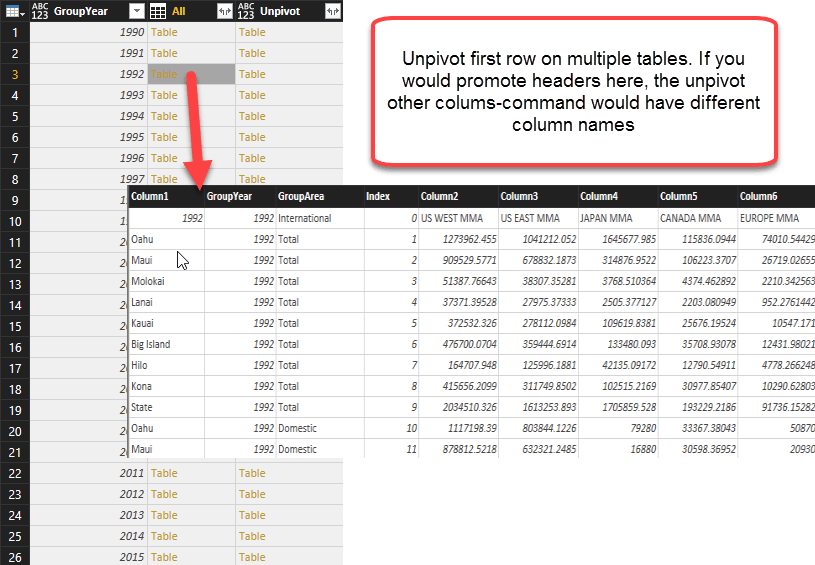
This is not only incredibly flexible (multiple header rows), but also very robust: You don’t have to care about changing column names for future refreshed or when you apply it to partitioned tables where the partitions itself have different column names already.

Unpivot by numbers

here: 3,2 (number of columns, number of rows):

returns:

Flexible and robust:

Your table has to be prepared as follows:

  • The columns that shall NOT be unpivoted must stand on the left side of your table. Their number must match the 2nd parameter you feed into the function (“FirstNColumnsToKeep”)
  • The header rows that shall be unpivoted must sit in the first rows of your table. So one of them still sit as the header row itself, you have to demote it (Home -> Transform -> dropdown at “Use First Row as Headers” -> “Use Headers as first rows”)

M-Code

Read more

Performance difference between Excel and PowerBI with M is huge!

I knew that the performance of M in the query editor of PowerBI was much better than in Excel, but only today I discovered the incredible difference we actually have here:

If you want to apply the BOM-solution I’ve posted here, you’ll soon discover that the performance in Excel starts to suck with large datasets. Performance decreases exponentially and my sample datasets with 4 levels and 100k rows didn’t went through, 16 GB RAM constantly at the limit, unable to do any other task at the same time.

In contrast, performance in PowerBI totally blew me away: Memory management is different. Rise in RAM-consumption was always below 3 GB, even with my largest dataset (a 5-level 1Mio (!) rows BOM table that exploded to 3,8 Mio rows). Also no sweat in CPU, so I was able to easily perform other tasks at the same time on my laptop.

Read more

Dynamically flatten Parent-Child Hierarchies in DAX and PowerBI

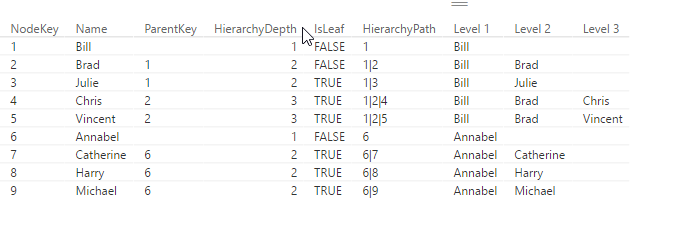
If you use DAX to flatten Parent-Child hierarchies you will end up with a table that has a static number of columns (like described here). If you need a dynamic solution instead, which creates just as many level-columns as there are needed for the current data, you can use DAX’s helper-tool Power Query (or Get Data in Excel) or the query-editor in PowerBI, which uses the language M.

Another advantage of this solution is that you can script the table creation in one step (only flaw: You still need to manually adjust your hierarchy though): But it saves time in creating the table, especially if you have many levels.

Update 2017-Dec-2: It also handles multiple parents now.

2 simple steps to flatten Parent-Child Hierarchies

  1. copy the following function,
  2. add a new step to your current table where you call this function, filling in the following parameters:
    • table name (which is the name of the previous step in your M-query)
    • name of the column with the child-key
    • name of the column with the parent-key
    • name of the column who’s values shall be shown in the levels (can also be child-key)


flatten Parent-Child Hierarchies
Call fnFlattenPCHierarchyFunction

Endless loops

If the relationships in your data are ambiguous, i.e. items stand in parent-child as well as child-parent-relationship to each other, and endless loop would occur. The newest version (V2 upwards) caters for this possibility and will generate a warning and return only the rows that are subject to the endless loop to examine.

And this is the code:

Read more

Automatical or Bulk- Rename Columns in Power BI and Power Query

Edit 7th Feb 2017: Friendly reader Roknic pointed out in the comments below that there’s actually an existing function for it in M: Table.TransformColumnNames 🙂

So the first of my example below would actually look like this:

Table.TransformColumnNames(Source, each Text.Replace(_, " ", "_"))

But still keeping my original post here, as the transformations in them might help for other use cases:

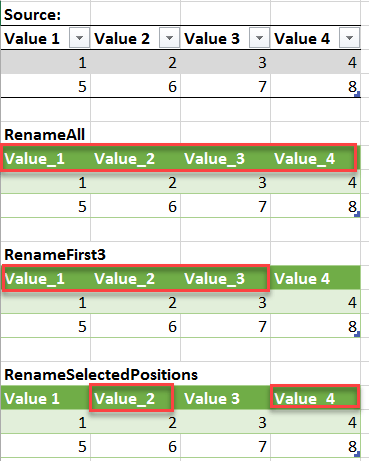
If you want to rename all of your table’s columns with a common rule, like “replace all spaces by underscore” or just “delete all spaces”, check out this easy method:

The above formula will replace all spaces (” “) by underscores (“_”).

How does it work:

The 2nd argument in the Table.RenameColumns-formula is a list of lists, just like in Table.TransformColumnType from this article. So we apply the same technique here: List.Transform transforms a single element from a list into a list-item, whose 2nd argument will be calculated with a Text.Replace-function.

Variations:

Rename Columns Variations

Only replace FirstN or LastN elements from the column names:

Read more