A generic SWITCH-function for the query editor in Power BI and Power Query

Although you can easily replicate the DAX SWITCH-function via list-, table- or record functions in M, I thought it would be convenient for many newbies to have a comfortable M-SWITCH-function that uses (almost) the same syntax than its DAX-equivalent:

SWITCH (
[Month],
    1, “January”,
    2, “February”,
    3, “March”,
    4, “April”,
    5, “May”,
    6, “June”,
    7, “July”,
    8, “August”,
    9, “September”,
    10, “October”,
    11, “November”,
    12, “December”,
    “Unknown month number”
)

DAX Formatter by SQLBI

The DAX-SWITCH-function will retrieve the content of its first argument (expression) ([Month]) and check it against he first parameters of the following pairs (value). If there is a match, the second parameter of the pairs (result, here: month name) is returned and if there is no match, “Unknown month number” will be returned.

How it works

The syntax for the M-function looks like so:
Read more

Web Scraping 1: Combine multiple tables from one page in Power BI and Power Query

This is a step-by-step description of how to combine multiple tables from one webpage into one table with categories as output. You can also apply this technique to combine tables from other sources as well (like from folder method for example or multiple different webpages (see this article)).

Sometimes the page you want to scrape has multiple tables like here:

0 – Combine multiple tables into one: Input

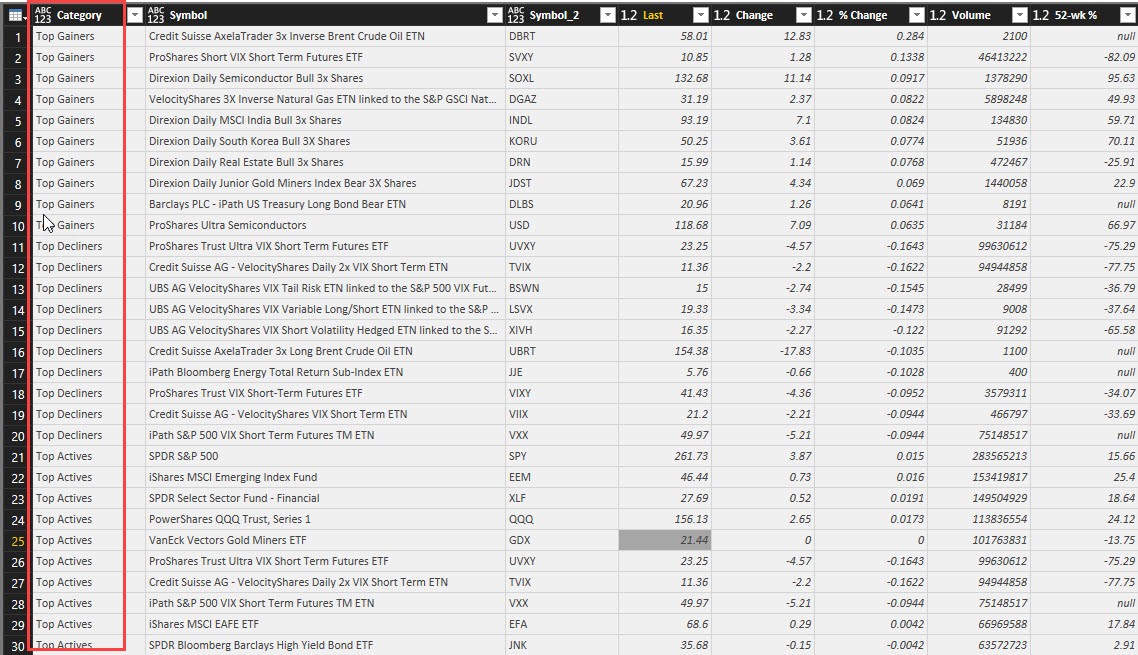
And you want to combine them into 1 with a Category-column like so:

1 – Combine multiple tables into one: Result

Overview

I will present 2 methods here:

  1. Append-method: This is the obvious one and is fast for just a few tables.
  2. Add-Column-method: A bit more complicated but will be faster for a large number of tables and is also suitable for a dynamic number of tables.

You will also find 2 options at the end of this article:

  1. Use custom functions for multi-step table transformations
  2. Use dynamic filters to select the desired tables


Append method

Read more

Table.Group: Exploring the 5th element in Power BI and Power Query

In this post I’ll show you the magic stuff you can do with the 5th parameter (the optional comparer function) of the Table.Group M-function in Power BI and Power Query:

Table.Group parameters

  1. table as table,
  2. key as any,
  3. aggregatedColumns as list,
  4. optional groupKind as nullable number,
  5. optional comparer as nullable function

If you’re not familiar with the 4th parameter (groupKind) already, I strongly recommend to read Chris Webb’s article, as we will build on its knowledge here.

Another aspect worth mentioning for the modus in GroupKind.local is the performance aspect: It runs MUCH faster for large datasets than the default-setting. So if you are sure that your data will always be sorted accordingly, you can speed up your grouping-operations considerably. That means: Your data has to be sorted correctly by default. At least for my tests, you would loose the performance-gain once you’d sort your table by an explicit step before.

You can find an overview of comparer functions here.

Case insensitive grouping

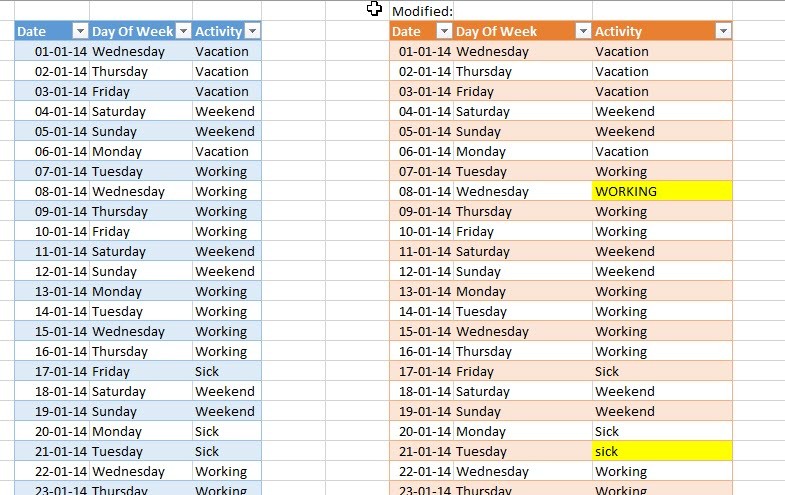
Imagine there was a twist in Chris’ dataset and it would look like so:

Table.Group – Modified Source Data

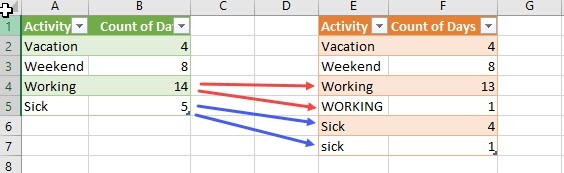
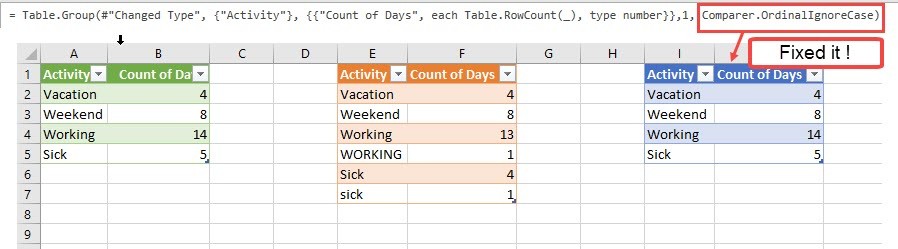
We would probably not be happy with these results then:

Table.Group Problem with Case Sensitivity

Because M is by default case sensitive, we get more groups than we want. Let’s try Comparer.OrdinalIgnoreCase to the rescue then:

Pretty neat, isn’t it 😉  (You can use that comparer in other functions as well, see here for text- and list operations)

Something like this was what I’ve showed Huang Caiguang the other day, who asked me what the 5th parameter of this function was about (or so I understood). He then sent me a link to one of his articles, which demanded a good 2 hours for me to digest and understand: We can also use custom functions to create all different sorts of grouping behaviours here. These are my 2 favourites:

Read more

Import text from pdf files in Power BI

While Power BI will soon provide functions to import tables from pdf-files, there might be occasions when you actually need to import text from pdf files (in unstructured form). With a little help from R in Power BI you can do exactly that. (And don’t worry: No need to learn R here: The necessary R-code is already included in my function … Read more

Remove repeating characters from a string in Power BI and Power Query

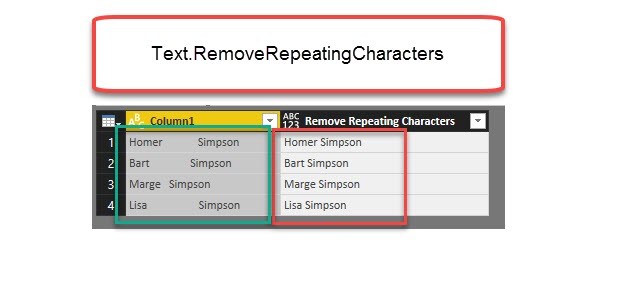
Repeating spaces often cause problems when cleaning up your data. My new function “Text.RemoveRepeatingCharacters” can come to the rescue here. Imagine you have a table like this: Challenge To further work with this data, it would often be best if there was just one space between the words and not many. The following function will do this for you: … Read more

Date.DatesBetween to retrieve dates between 2 dates in Power BI and Power Query

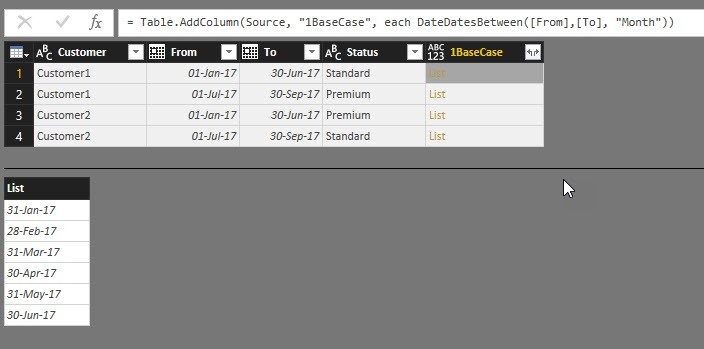
Today I’m sharing a handy function with you that allows you to retrieve all or just a couple of dates between 2 given dates: Date.DatesBetween.

Usage

This function takes 3 parameters:

  1. From- or Start-date
  2. To- or End-date
  3. A selection of ONE of these intervals: Year, Quarter, Month, Week or Day

All dates will be created at the end of the chosen interval: So if you want to analyse events with a duration for example, where you want to transform your data to show one day per (monthly) event, this function generates month-end-dates for every month within the timespan. Please not that if the To-/End-date is within a month, the last element of the list will NOT be that day, but the day of the end of that month.

The default-value for the 3rd parameter is “Day”, so if you omit the specification, the function will return a list of all days in between.

Read more