DAX evaluation context indicator with syntax highlighting

This is a post about a feature request, that definitely would make my life easier (and I guess others’ too):

Evaluation context and its transition is one of the hardest concepts in DAX and I would find it extremely helpful, if syntax highlighting would assist us here. Let the colour of the table name show whether the expression will be evaluated:

Read more

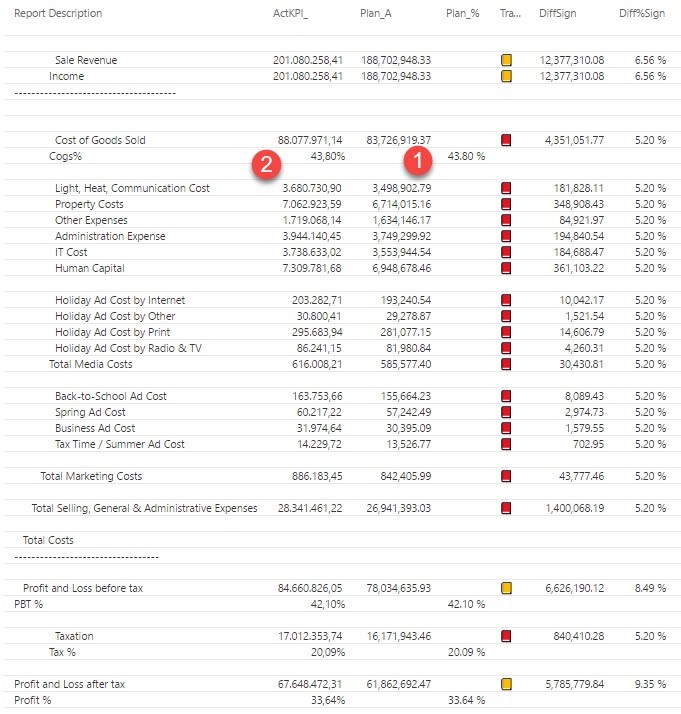
Right Aligning Text in Power BI: Format Improvements for Easy Profit&Loss Reports

Edit 14-Dec-2017: Now that we can right-align text measures in PowerBI, a SWITCH-measure like here: http://www.thebiccountant.com/2017/04/24/kpis-in-easy-profit-and-loss-for-powerbi/#comment-719 is the best alternative in my eyes. No need to read on 🙂

As shown in my last part of the Easy P&L-series, Power BI unfortunately still lacks some fundamental formatting options like:

  1. Right aligning text (please vote for it here: Right align text in Power BI – edit 15th Nov: We’re there: Right aligning text is available now: https://powerbi.microsoft.com/en-us/blog/power-bi-desktop-november-2017-feature-summary/)
  2. Display numbers in different formats within one column (either to be implemented as a “neutral” format for Switch-measures, where the referenced measures carry the formatting attributes already, or as a part of a formula-based conditional formatting) (Thanks Matt for the voting-link: Conditional format SWITCH measure)

So for the moment I choose between the following workaround-options:

  1. Display %-values in a separate column
  2. Format numbers as text and fill up with spaces so that all end up right aligned
  3. See the suggestion from Matt Allington in the comments below (very nice)

Right aligning text or percentage figure in new column

For both options the preparations are the same:

Read more

Custom Connector to import Google Sheets with OAuth2 authentication in PowerBI

EDIT 17th Feb 2022: Finally, we have the native connector in Power BI: Power Query Google Sheets connector – Power Query | Microsoft Docs – so no need for the workaround described in this blogpost.

EDIT 17th August 2019: Added instructions for the newly added consent screen below..

Recently I came across the need to connect to Google Sheets with a secure authentication process quite often, so I will share with you how and to what extend I got the custom connector working that I found here. It uses OAuth2 authentication, so you can share your workbook with selected colleagues and they will be prompted to enter their credentials in Power BI if they try to access these files.

High level overview

First you have to create an API in your Google account. This will enable other programs to connect to your data (provided they pass the correct credentials). After that you have to adjust the .mez-file to include the client id and client secret that identify your API. This data will be generated when setting up the API. After you’ve adjusted the .mez you have to store it in a dedicated folder so that Power BI can access it. Lastly, if you want to use this connector in the Power BI service, you have to add the .mez-file to a gateway.

Setup Google API

Go to the Google Developer API and if you don’t have a project yet, just create one:
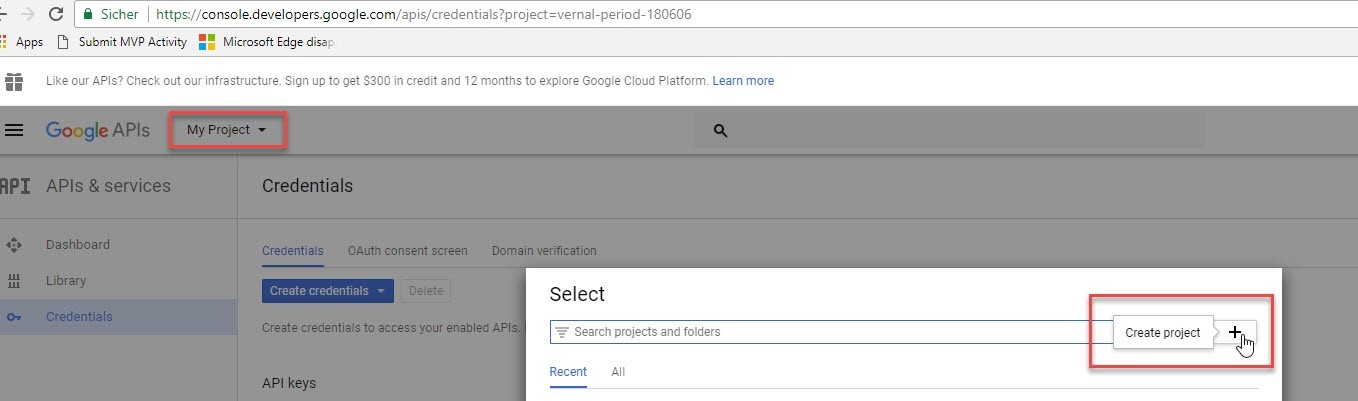
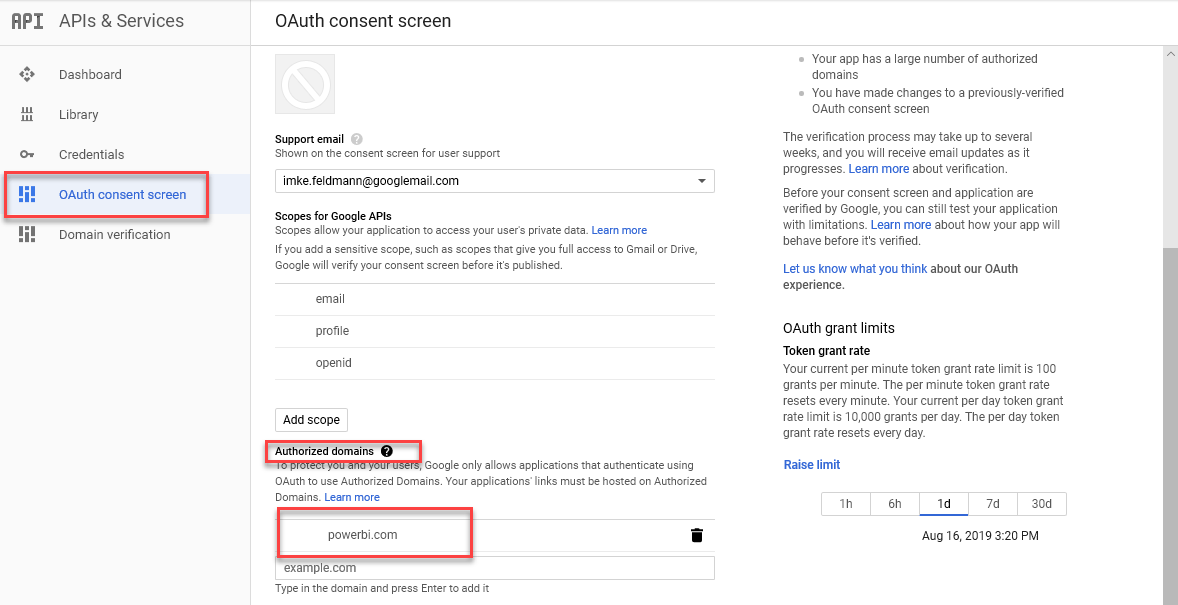
NEW: A OAuth consent screen will pop up and you have to give your app a name and fill in “PowerBI.com” into the “Authorized Domains”:
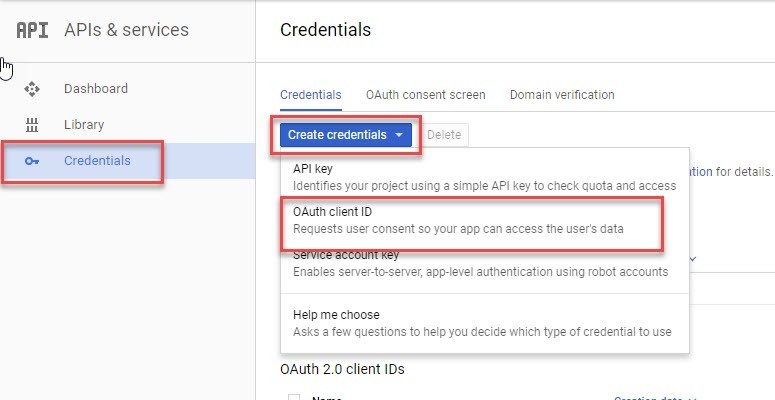
Next go to “Credentials” -> Create credentials and choose “OAuth client ID”:
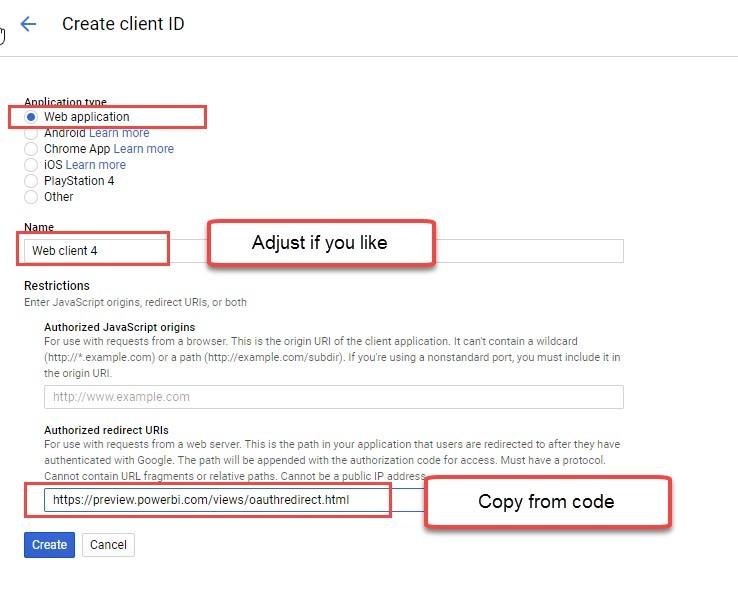
Choose “Web application”, adjust the “Name” if you like and paste the redirect-url into “Authorized redirect URLs”: https://preview.powerbi.com/views/oauthredirect.html
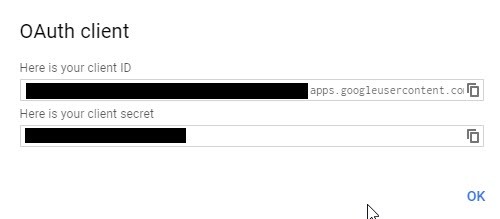
This will return the client ID and secret for your connector:
 

Adjust the files for the connector

Read more

How to create and use an R-function-library in Power BI

Edit 10-10-2017: There is also a (simpler) way to run a custom function library described here: http://www.thebiccountant.com/2017/10/06/create-a-function-library-in-power-bi-using-m-extensions/ . If you go that route, the only point of interest in the article might be how to create your function library automatically.

Once you’ve discovered the huge potential R gives you to expand your analytical toolbox in Power BI (check some tips & tricks in my previous blogpost if you haven’t already), you might wish to have all your awesome functions conveniently at hand when designing new solutions. And thanks to M, there’s actually nothing easier than that: R-function-library in a record (which works just the same for M-functions 🙂 )

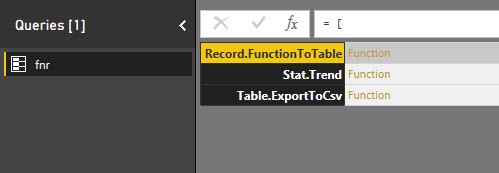
Put your functions into a record (fnr) with the function name as the field name and the function itself as the value: One query to hold them all (and not cluttering your editor pane) and ready to use as if they were native functions:

R-function-library

Use

will export content of my query “Actuals” to csv-file on my desktop.

  1. fnr is the name of the record. You can give it your own name of course, I prefer to keep this as short as possible.
  2. followed in square bracket is the name of the function (record field name)
  3. in ordinary brackets you have the function arguments just like in standard M (record value)

Create record

Read more

Tips and Tricks for R scripts in the query editor in Power BI

Especially if you are new to R, there are some things one needs to know to successfully run R-scripts in the query editor of Power BI. I will share them here along with some tricks that made my R-life in Power BI easier:

How to get started – useful links:

Input:

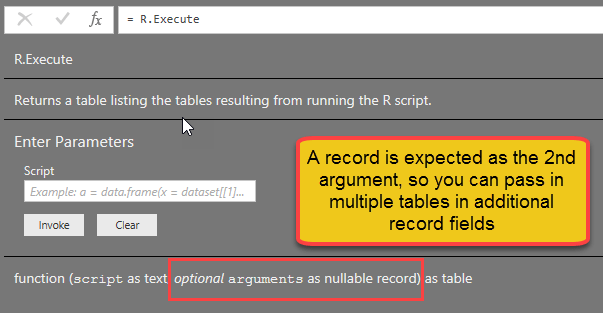
You can feed multiple tables into the R-script

If you click the icon “R script”, the table from the previous step will automatically be passed as the “dataset” to the R-script. So if you don’t fill in any R-code, this will happen:

image

But if you need the content from other tables as well, you just add them into the square brackets like this:

image

“Documentation” looks like this:

image

You can use parameters in the R-script

Apart from tables, you can also use text strings as parameters in the script. They need to be inserted into the code with preceeding “& and trailing &”:

RExportCsv= R.Execute(“write.csv(dataset,” “&CsvExportPath&” “)”,[dataset=Actuals])

Beware that they must be text. So if you want to pass a number, wrap it into Text.From(…).

You cannot use anything else apart from tables and parameters in the R-script

Well, at least I haven’t managed it Smile

R-life gets easy-peasy if you use M-functions for your R-script

Read more

How to import from Excel with cell coordinates in Power Query and Power BI

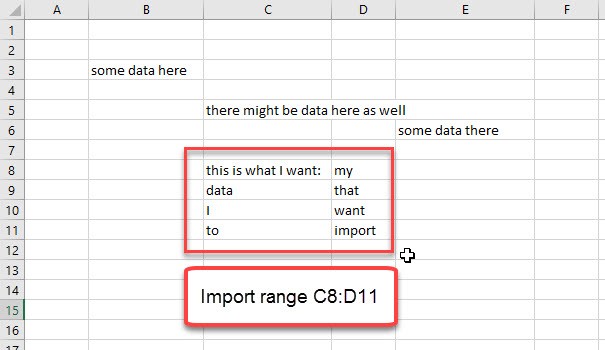
There might be occasions where you want to import data from Excel into Power Query or Power BI using cell coordinates like a range from E3 until G9 for example (“A1 cell reference style”). The function I provide below also caters for the potential pitfalls of this task that Maxim Zelensky has described in his article.

Background

If your worksheet has one leading empty row and column, the import will ignore them and automatically return the range starting from B2. So to fetch the range E3:G9 you have to delete the first row and the first 3 columns. But as Maxim has found out, remaining formats on empty cells will lead to an import of empty rows and columns. So the number of rows and columns to delete will vary and is hard/impossible to predict.

Method

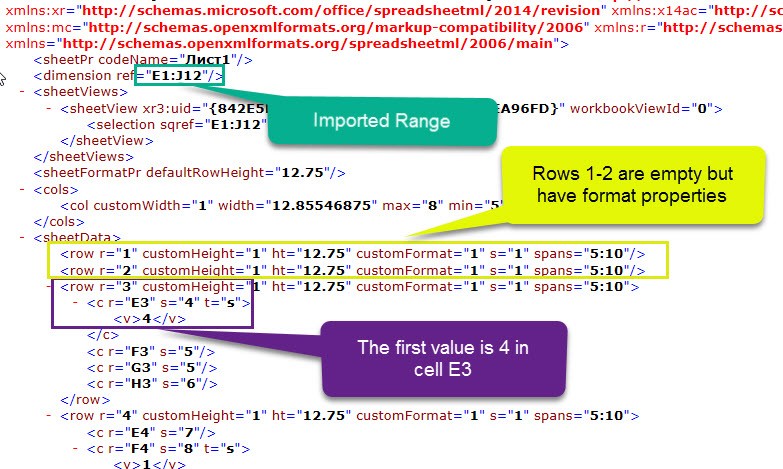
The range that PowerQuery or PowerBI will import is stored in the Excel-file already in the sheet-data and the xml looks like this (“Sample3” from Maxims data):

The imported range is E1 till J12, as the first rows contain formatting instructions, and will therefore be imported as well. In the 3rd row E3 shows up with the first value, which is surrounded by “<v>”.

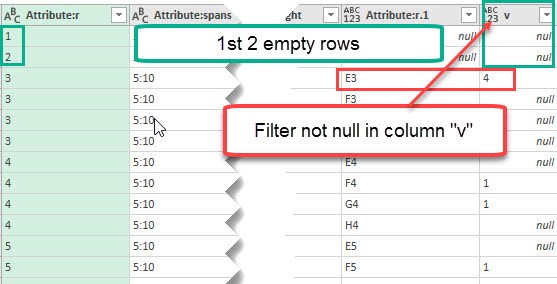
This is how it looks like in the Xml.Table in the query editor:

Task is to calculate the number of rows and columns delete, considering the individual offset that is caused by the formatted empty cells.

Code

So I’ve cooked together these ingredients in a pretty massive code that you can download here: fnImportFromExcelCellCoordinates.txt

How to use the function

Read more