
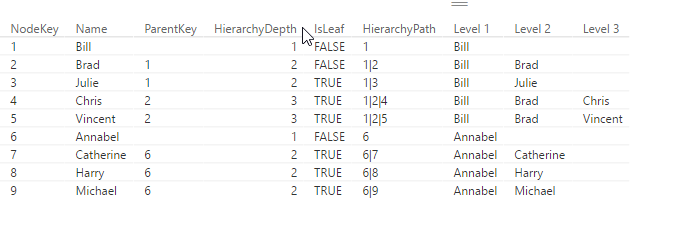
Dynamically flatten Parent-Child Hierarchies in DAX and PowerBI

If you use DAX to flatten Parent-Child hierarchies you will end up with a table that has a static number of columns (like described here). If you need a dynamic solution instead, which creates just as many level-columns as there are needed for the current data, you can use DAX’s helper-tool Power Query (or Get Data in Excel) or the query-editor in PowerBI, which uses the language M.

Another advantage of this solution is that you can script the table creation in one step (only flaw: You still need to manually adjust your hierarchy though): But it saves time in creating the table, especially if you have many levels.

Update 2017-Dec-2: It also handles multiple parents now.

2 simple steps to flatten Parent-Child Hierarchies

  1. copy the following function,
  2. add a new step to your current table where you call this function, filling in the following parameters:
    • table name (which is the name of the previous step in your M-query)
    • name of the column with the child-key
    • name of the column with the parent-key
    • name of the column who’s values shall be shown in the levels (can also be child-key)


flatten Parent-Child Hierarchies
Call fnFlattenPCHierarchyFunction

Endless loops

If the relationships in your data are ambiguous, i.e. items stand in parent-child as well as child-parent-relationship to each other, and endless loop would occur. The newest version (V2 upwards) caters for this possibility and will generate a warning and return only the rows that are subject to the endless loop to examine.

And this is the code:
Read more

Conditions in FirstN, LastN and other xN-functions in M, PowerBI and Power Query

Today I discovered that we can use conditions in many of the N-selecting functions where one/I would normally expect just a number-expression for the N: Table.RemoveFirstN( table as table, optional countOrCondition as any) So apart from being able to select a certain number of rows to be removed, we can pass a condition (as function). This condition will … Read more

How to store tables longer than 1,1 Mio rows in an Excel-sheet using Power Query and JSON

If you are working Power Query, you might come into a situation where you would like to make tables accessible from outside that file, that are longer than the 1,1 Mio rows who fit into an Excel-sheet. You can do that using the JSON-format and compression. That way you create a table in Excel that contains a JSON-text string, that can then be read and decoded again by Excel (or Power BI), using Power Query (or Get&Transform in Excel 2016).

You can download the file where a table with 2 Mio rows is compressed into a table with just 229 rows here: JSON_BreakRefreshChain4.xlsx

Simple idea:

Convert your table into JSON using the Json.FromValue-function. If we could export that JSON-file from here, we would be done already. But I haven’t figured out yet, if/how one could export or copy that from within the query-editor (apart from manual copy& paste, but that has also a limit of our good 1 Mio characters here). So if you have any idea about this, please share.

Workaround:

Read more

Import Measures from different Tabular Models using DAX Editor

Marco Russo has created a great tool for SSAS tabular that lets you edit measure definitions (which you should read here first if you haven’t done yet).

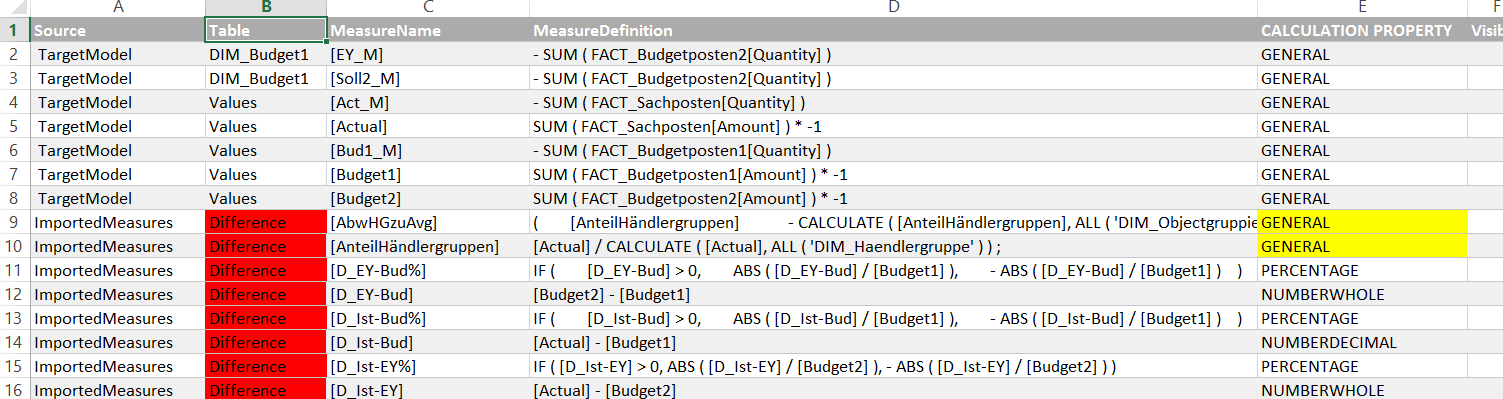
In this article I’ll show you how you can use it to import multiple measures from different tabular models into your current model.

The way the DAX-editor works is that it exports the existing measures from your model as a text file and imports them back after you’ve done your transformations. My technique will add the measures from the other model automatically to the existing measures so that both can be loaded back into your current model. In addition to that, you will have a UI with a process that guides you through the necessary steps that come with a task like that, which are:

  • select only those measures that you actually need
  • check references to existing measures and columns from the import model and manage their handling
  • allocate the tables into which these measures are going to be imported

This will all be done in a Power Query-powered Excel workbook that you can download here:   DaxEditorEditor_Final2.xlsm

These are the steps:

Read more

How to tame Case Sensitivity in Power Query and PowerBI

Have you heard of “Comparer.OrdinalIgnoreCase”?

If the answer is “No” (or something similar), you will be very delighted to hear that this is your key to disable case sensitivity in comparing operations.

So if you want to check if a substring like “car” is contained somewhere, you can write:

Text.Contains(MyText, "car", Comparer.OrdinalIgnoreCase)

and the expression will return true for all cases of car like: CAR, Car, caR… .

The official documentation looks like this:

Read more