Use R to export data from Power BI

Edit 03 Aug 2016: With the July 2016 release you can now run your R-scripts directly in the query-editor (so no row-limit any more!). No need to go via the visuals. But this will limit you to export datasets from the query-editor, so no DAX.

Edit 22 Jan 2016: Currently this method is limited to 150k rows! It will drop all others without warning!

Edit 25 Jan 2016: 150k rows is the limit on all R-scripts at the moment (link). A warning sign will be shown on the image. Will create a new blogpost if this changes – so stay tuned (by following this blog, Twitter or LinkedIn)

With the December release, Microsoft enabled Power BI’s content to be fetched from the R-feature. So instead of plotting this data to the screen, could we just export it to a file?

Yes we can:

write.table(trim(dataset), file=”your filepath & filename.txt”, sep = “\t”, row.names = FALSE);

write.table has a lot of options, which are explained here. I’ve only used a few here: Exactly defining the location where the output-file shall be stored (file=), setting tab as delimiter (sep=”\t”) and skipping row names, which would be an index in our example here.

In addition to that, I had to get rid of trailing whitespaces that somehow sneaked into the table (trim(dataset)). Therefore the gdata-package is needed. So the full R-code looks like this:

require(gdata)
write.table(trim(dataset), file=”your filepath & filename.txt”, sep = “\t”, row.names = FALSE)
plot(dataset);

Here you have to make sure to turn the slashes in the filepath: So if your path looks like this: C:\Users\Imke\Desktop\Rfile.txt you need to write it like this: C:/Users/Imke/Desktop/Rfile.txt

NEW: You find a function for this export here: https://github.com/ImkeF/M/blob/master/LibraryR/Table.ExportToCsv.pq , it swaps the slashed automatically.

Let’s take this as a start that will probably fulfill many users need to quickly export data from Power BI to simple text files. Further use cases I see are:
Read more

Visualize dependencies between your DAX measures: DAX-VizArt-Wizard

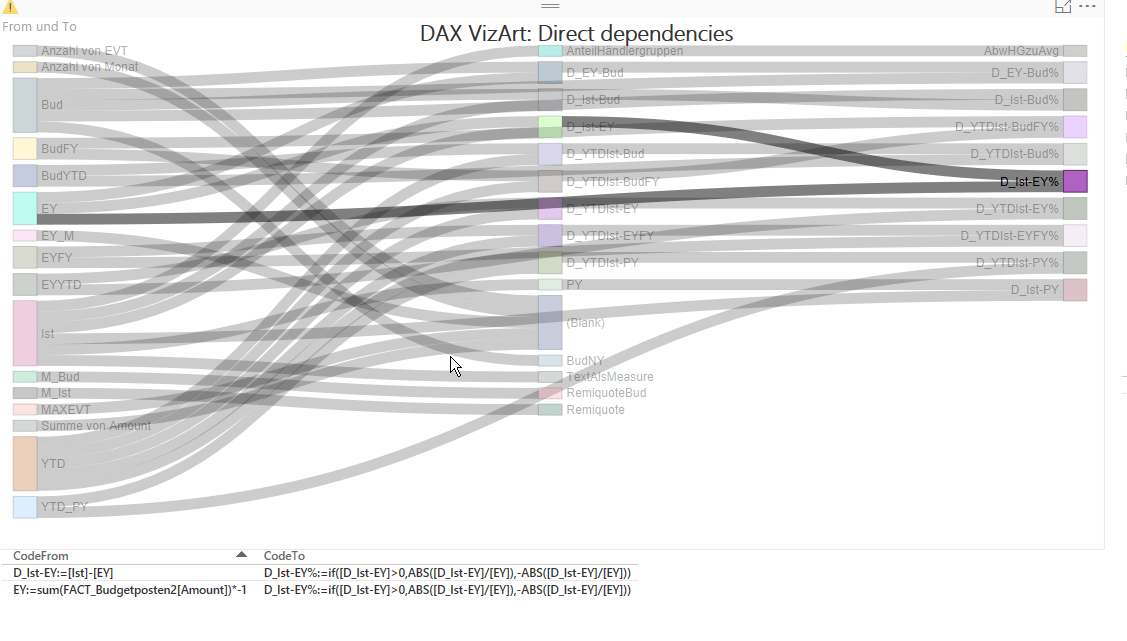
This DAX-VizArt-Wizard vizualizes dependencies between your DAX measures, shows the definition of all related measures and shows differences between the measures of 2 models/versions. This works for Power Pivot, Power BI and for Analysis Services Tabular (SSAS).

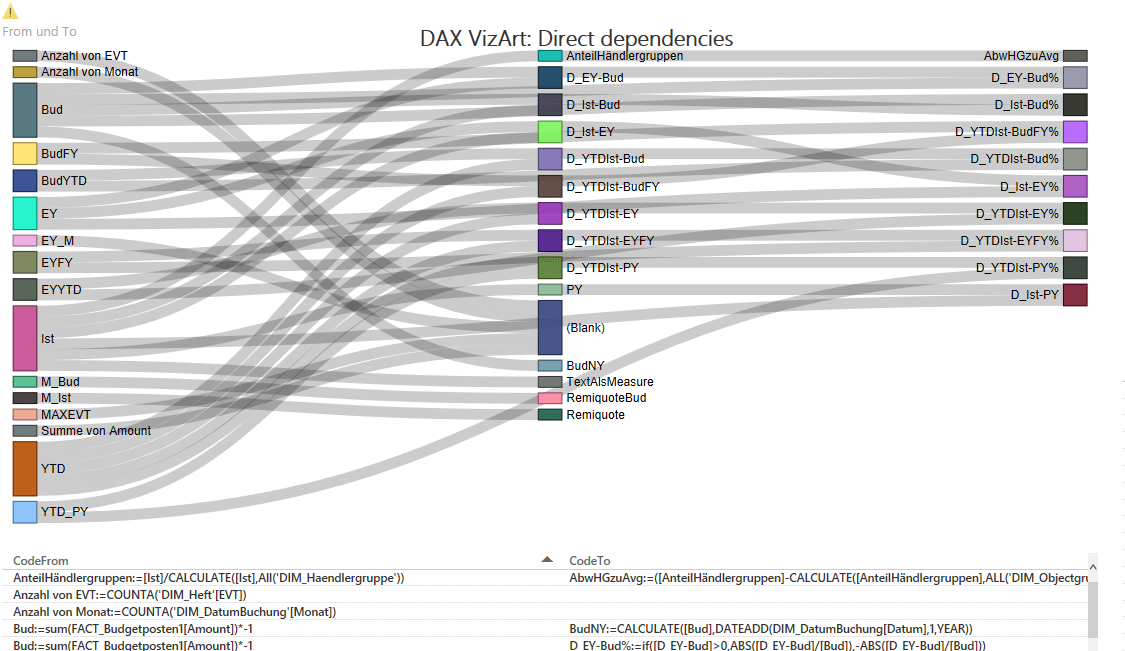
In the Power BI-Version you’ll see them in the Sankey-chart like this:

VizArt1

If select measures/nodes, all direct connections will be highlighted:

VizArt2Direct

In the second version, all indirect connections will be highlighted as well & the selected measure definitions will be shown.

Read more

Tip for Parameter Tables in Power Query and Power BI

Parameter tables in Excel are normally set up like this: In order to retrieve the currency for example, you could write this: = Parameters[Value]{2} This returns the content of the “Value”-column of the query named “Parameter” that sits in the 3rd row (! Power Query starts to count at zero): EUR. Which is not bad, but also not … Read more

How to auto-parametrize your Power Query queries

This is about a technique that I’m going to use in my upcoming articles on ICT reconciliation. But as it is useful in other areas as well, it’s getting its own post here:

Say we want to pass the year and month as well as the type of accounts as filters/parameters into our reconciliation query. If our file is stored here:

C:\Users\Imke\Desktop\2015\08\\ICTRec201508_Transactions.xlsx,

we have everything we need. And when the next month comes, we even don’t have to adjust our query, as it will automatically take 09 as the months parameter, providing we store it in the correct folder.

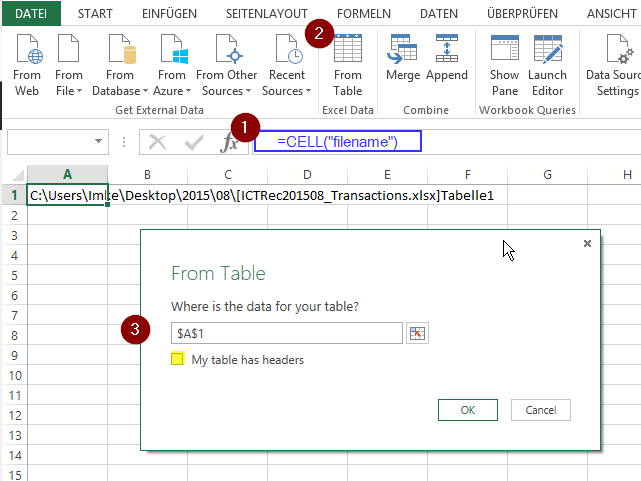
Using: CELL(“filename”) will extract this information into the cell in Excel. Check this cell and pass it to Power Query (as table).

Image1

Now we just have to extract the relevant parts, using an ultracool ninja-trick I just picked up in the TechNet Forum:

Read more

Filter SQL-server queries with Excel-tables: Query folding limitations and bug workaround

Power Query provides excellent functions to filter your SQL-Server queries by complete Excel-tables instead of just single parameters (like in all other Excel-based approaches). But you need to take care that the filtering is done at the server – before the data is loaded to Excel. This has a huge impact on performance that you don’t want to miss and is called “query folding”. Koen Veerbeck’s article provides a very good overview, links to other usefull resources on this topic as well as a list of limitations for query folding to happen.

Recently I ran into a problem where folding seemed to stopp randomly: Used a table to filter and with some entry sets it folded and some other entries it didn’t. I received very good help from Microsofts Dev-&Support Team on this issue which I thought was worth sharing: They pointed out a bug in the current heuristic that is used to balance load times. This bug means that queries will stop folding now if the number of rows in the Excel-filtertable exceeds 200 rows:

So if the heuristic would work as planned, query folding would take place, if:

Read more

Power Query Management Studio reloaded: Now supports MDX

Very happy to see that my Power Query Management Studio isn’t just perceived nerdy but useful as well 🙂 Thanks to Dusty for his nice review.

So let’s push it a bit further and add some MDX functions to it that cannot be done by DMVs:

  • get a list of all unique fields used in a specific MDX query
  • translate your code to a different cube using a simple field-translation table

How to use this for MDX:

Read more