After the great announcement yesterday that we will be able to ship custom functions within the shared environment, I’m expecting a lot of people starting to write awesome custom functions for M. Hopefully they will all have nice function descriptions/metadata shipped with them, that makes it as easy as possible for users to apply them correctly:
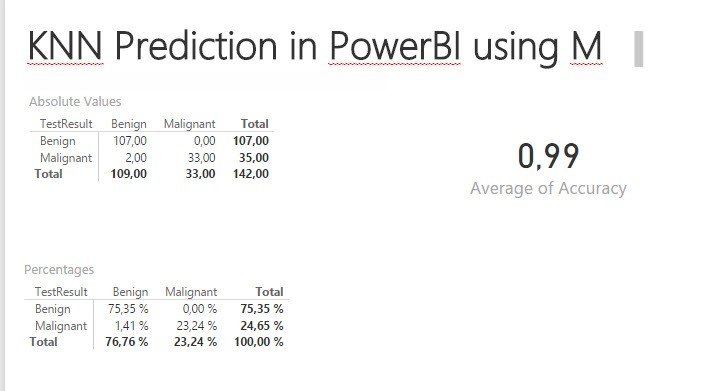
Very often I have thought about trying M instead of R for machine learning problems in PowerBI. Not only because I’m such a big fan of M, but also because we don’t have the R-integration in Excel (yet?). Leila Etaati’s brilliant series of how to use R in PowerBI for KNN-prediction (nearest neighbourhood) finally kicked … Read more
Edit 7th Feb 2017: Friendly reader Roknic pointed out in the comments below that there’s actually an existing function for it in M: Table.TransformColumnNames 🙂
So the first of my example below would actually look like this:
Table.TransformColumnNames(Source, each Text.Replace(_, " ", "_"))
But still keeping my original post here, as the transformations in them might help for other use cases:
If you want to rename all of your table’s columns with a common rule, like “replace all spaces by underscore” or just “delete all spaces”, check out this easy method:
The above formula will replace all spaces (” “) by underscores (“_”).
How does it work:
The 2nd argument in the Table.RenameColumns-formula is a list of lists, just like in Table.TransformColumnType from this article. So we apply the same technique here: List.Transform transforms a single element from a list into a list-item, whose 2nd argument will be calculated with a Text.Replace-function.
Variations:
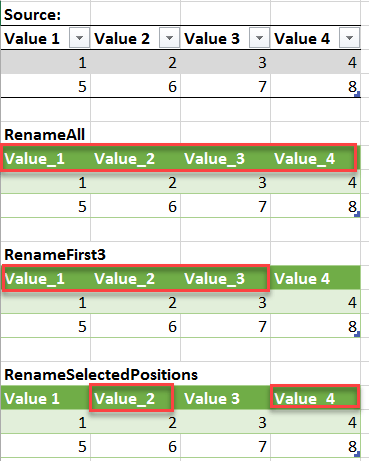
Rename Columns Variations
Only replace FirstN or LastN elements from the column names:
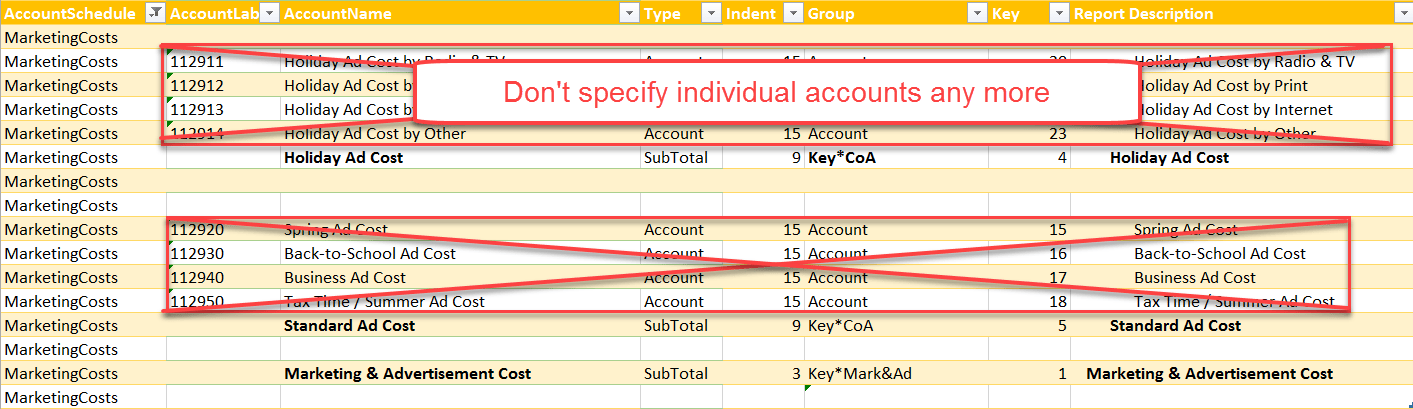
Here comes some long awaited comfort functions for part 2 of my easy P&L series. In the first section I’ve presented the general principle on how to work with a structure using an accounts-group-table. Today I will present 2 alternatives to define the reports without specifying single accounts. So if a new accounts are added to the chart of accounts, you don’t have to adjust your report definitions: Just make sure that to fill in all the fields in your account-group-table and you’re ready to go 🙂
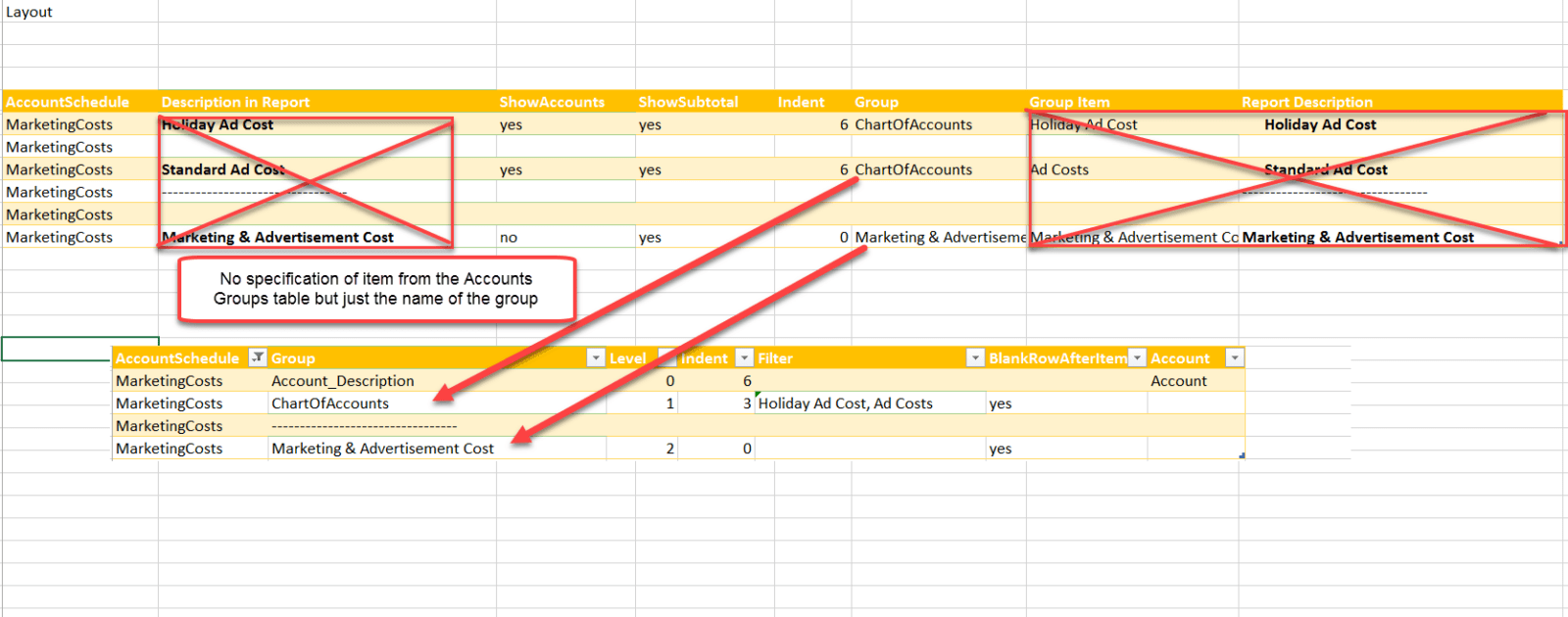
No need to specify single accounts
So you only need to adjust your report definitions if you add new group items. If that’s still too much, take the 2nd solution, which will even eliminate that requirement:
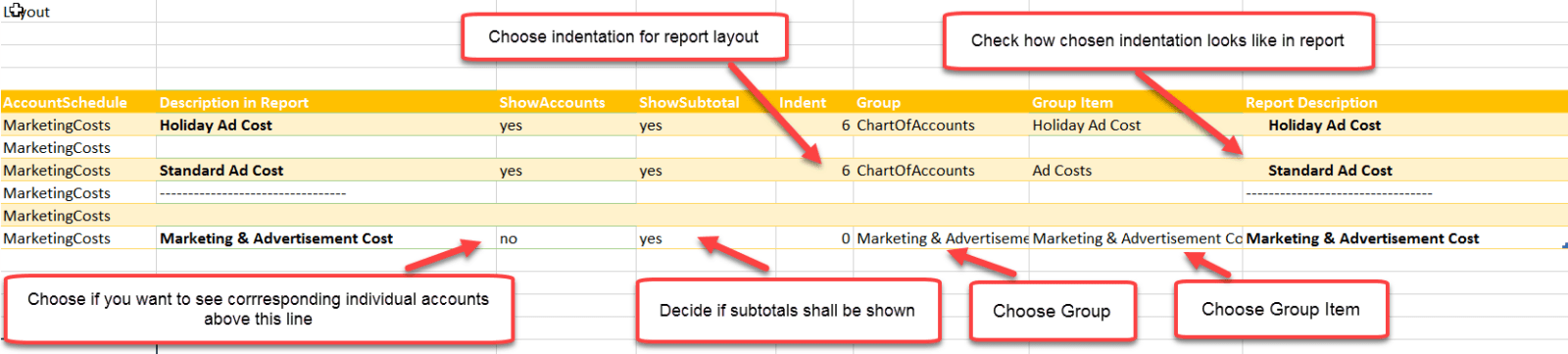
Individual Account Layout: Just define each subtotal and determine for which subtotals single accounts shall be shown
No more specification of individual accounts
How to use it:
How to use Individual Report Layout
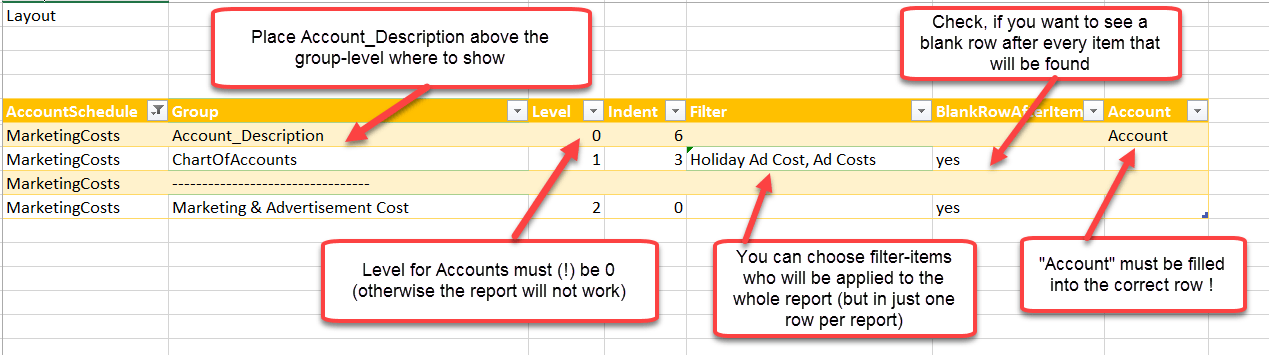
2. Ultrashort Account Layout: Further simplification of just defining the groups (hierarchy) that shall be shown (with option to filter on one of them)
No need to define individual group items
How to use it:
How to use Ultrashort Layout
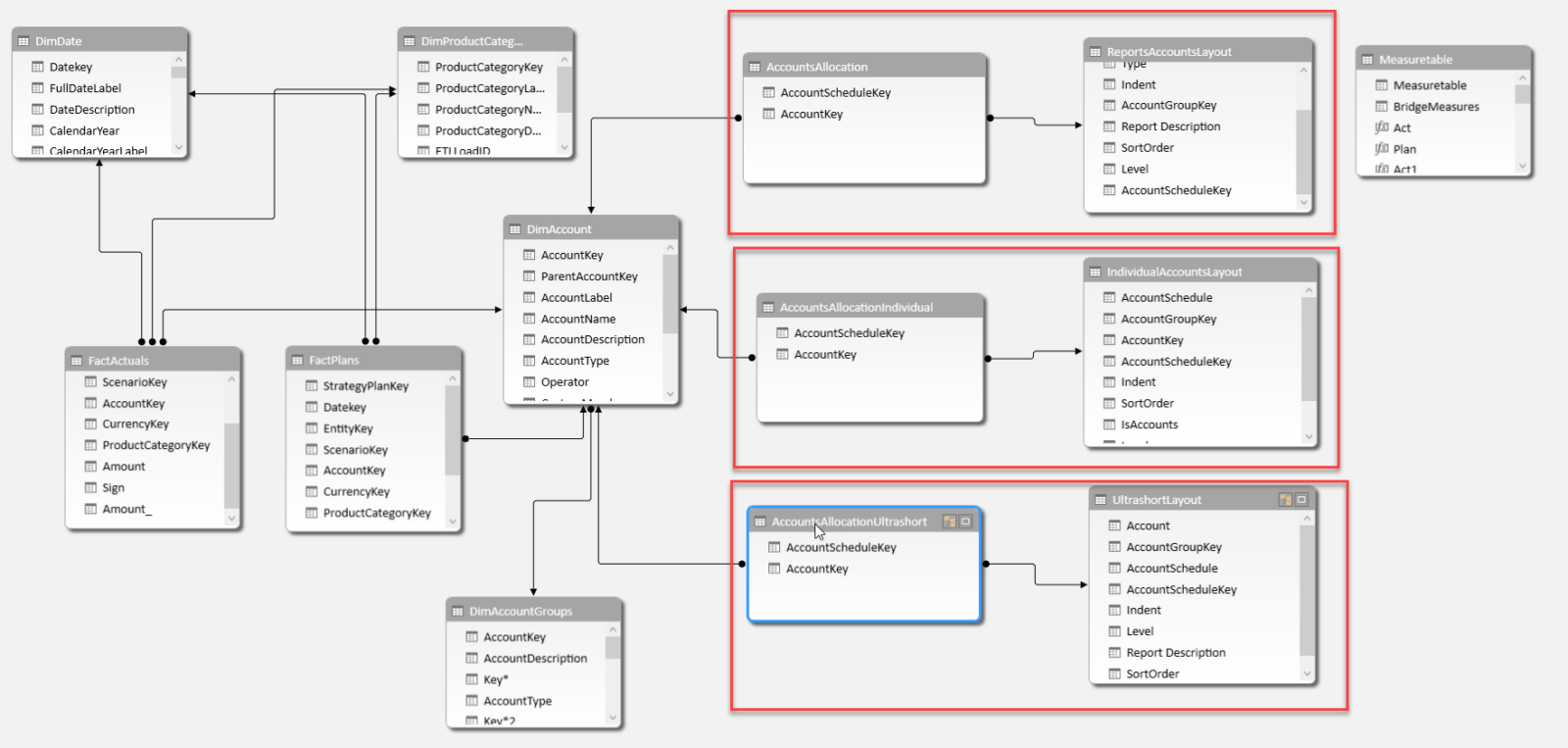
So these 2 different layouts will both produce the same reports incl. all accounts – just like in the first example. So you can choose which layout-style suits you best – actually, you can use all 3 in parallel. You just have to make sure to grab your pivot-rows from the correct tables and in Excel to grab the matching measures, as they all have their own bridge-tables (which need to be used in the measures):
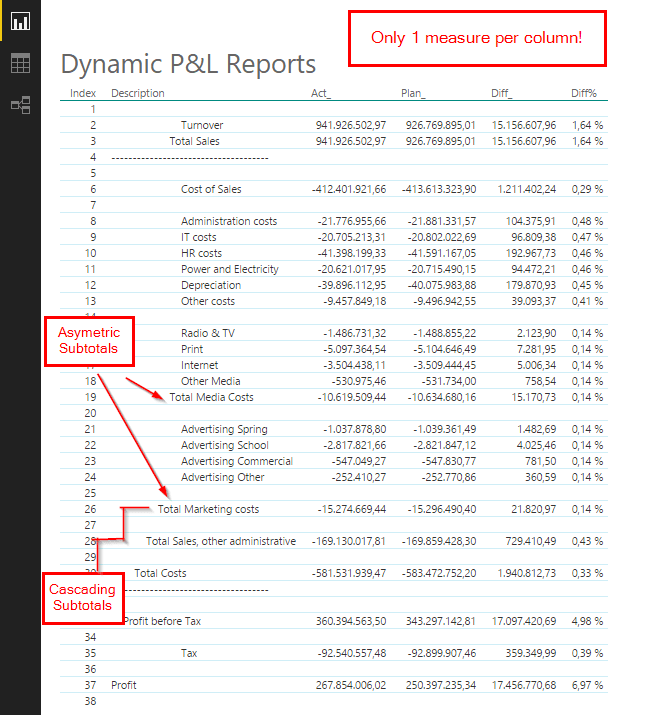
Welcome to part 2 of my series of easy Profit & Loss and other account statements in Power BI and Excel. In the first part I introduced the general principle of creating asymmetric shaped reports who use just one measure per column (you should have read this article in order to understand this post here).
How the technique works
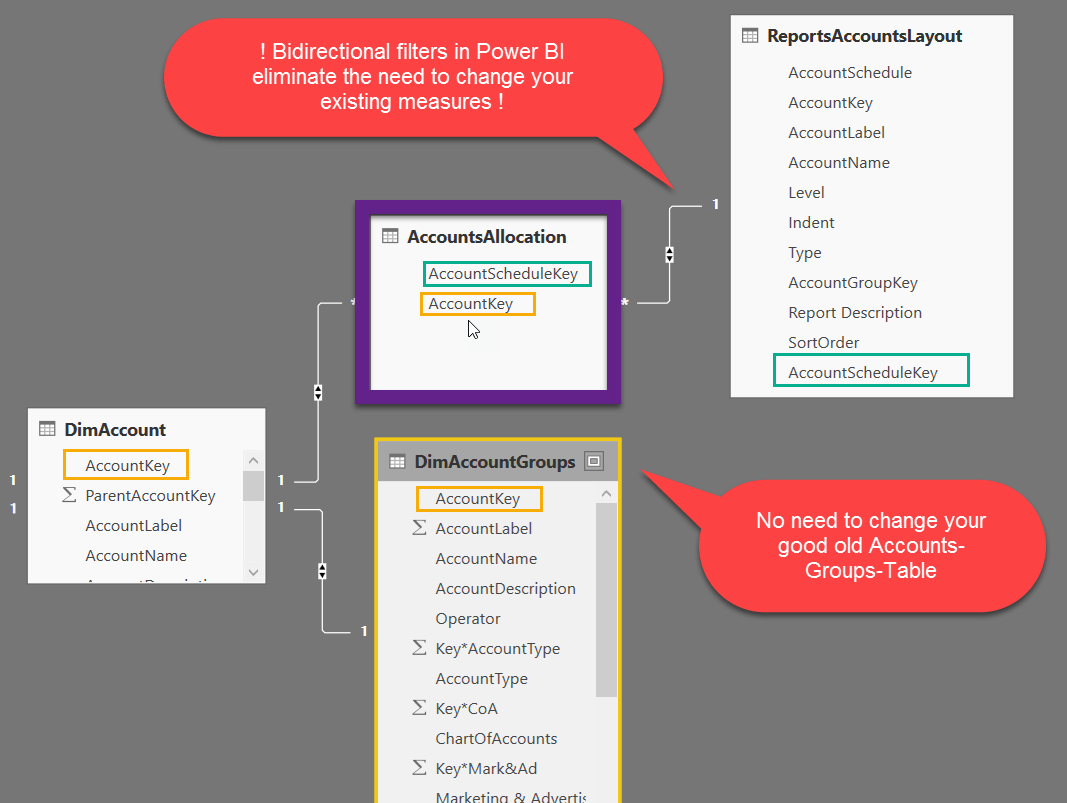
This technique capitalises the aggregation power of the Vertipaq engine and creates a bridge-table between your DimAccount-table and the ReportsAccountsLayout-table. In there for every line of your report, all accounts that belong to the (sub-)totals are matched (“AccountsAllocation”). This table can get very long, but the engine can handle this easily:
Different use case: Account-groups-tables
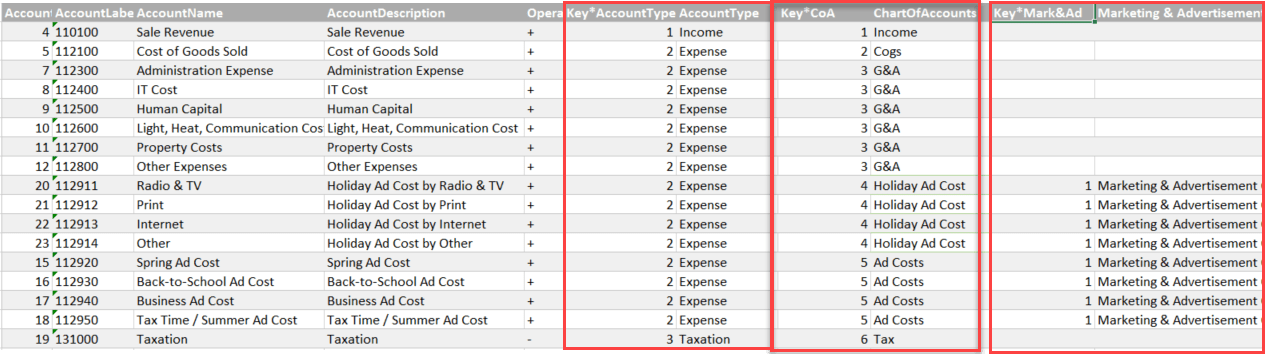
In the first example we’ve worked with a chart of accounts, which had a parent-chield-hierarchy defining all the subtotals of the report. In this example we’re working with a different setup, using the good old DimAccountsGroups-table. Just one row per account and the columns are coming in pairs, containing the group-criteria and the sort-order for the report:
Individual Report-Layout
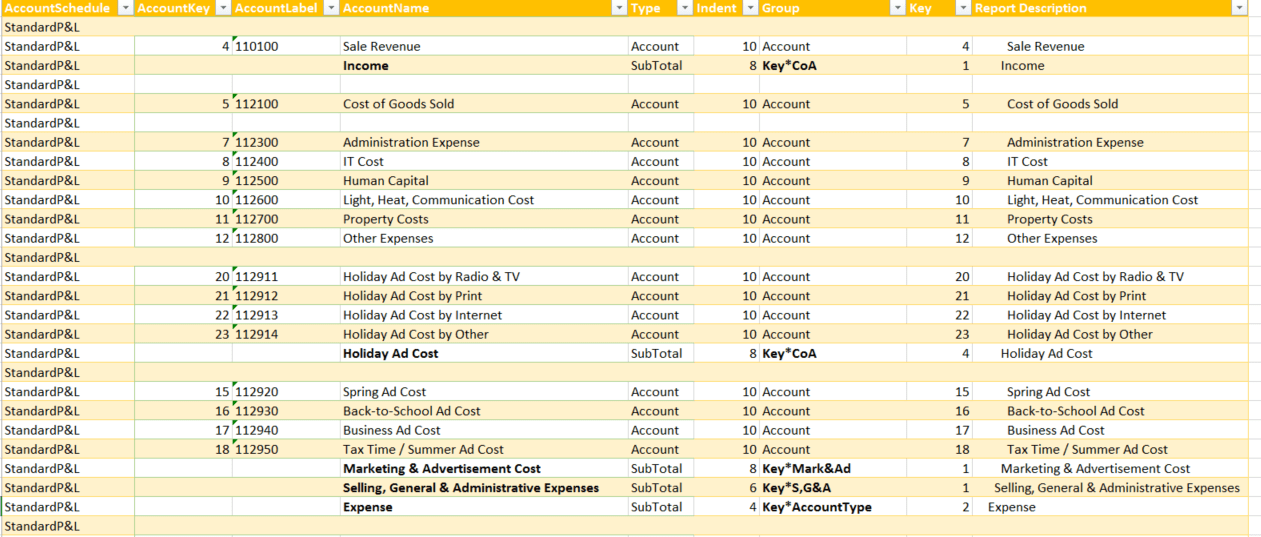
We also need a second table (ReportsAccountsLayout) that holds the definitions of the report-layouts like this:
This is just a quick code-share-of-the-day of different scenarios for dynamic type transformation of multiple columns at once. The syntax to transform the format of 2 columns (“Column1” and “Column2”) in a table (“Source”) looks like this: Now if you would like to do one of the following: 1. Force all columns of the table to … Read more