How to store tables longer than 1,1 Mio rows in an Excel-sheet using Power Query and JSON

If you are working Power Query, you might come into a situation where you would like to make tables accessible from outside that file, that are longer than the 1,1 Mio rows who fit into an Excel-sheet. You can do that using the JSON-format and compression. That way you create a table in Excel that contains a JSON-text string, that can then be read and decoded again by Excel (or Power BI), using Power Query (or Get&Transform in Excel 2016).

You can download the file where a table with 2 Mio rows is compressed into a table with just 229 rows here: JSON_BreakRefreshChain4.xlsx

Simple idea:

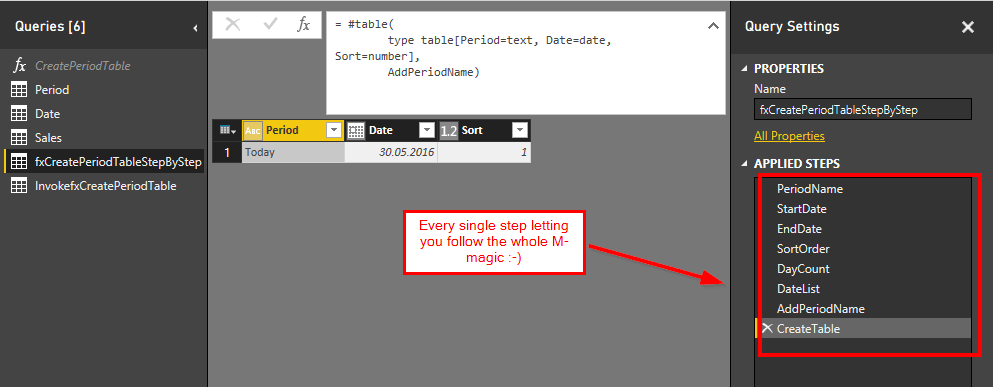
Convert your table into JSON using the Json.FromValue-function. If we could export that JSON-file from here, we would be done already. But I haven’t figured out yet, if/how one could export or copy that from within the query-editor (apart from manual copy& paste, but that has also a limit of our good 1 Mio characters here). So if you have any idea about this, please share.

Workaround:

Read more

Dynamic duration calculation using DAX in Power BI and Power Pivot

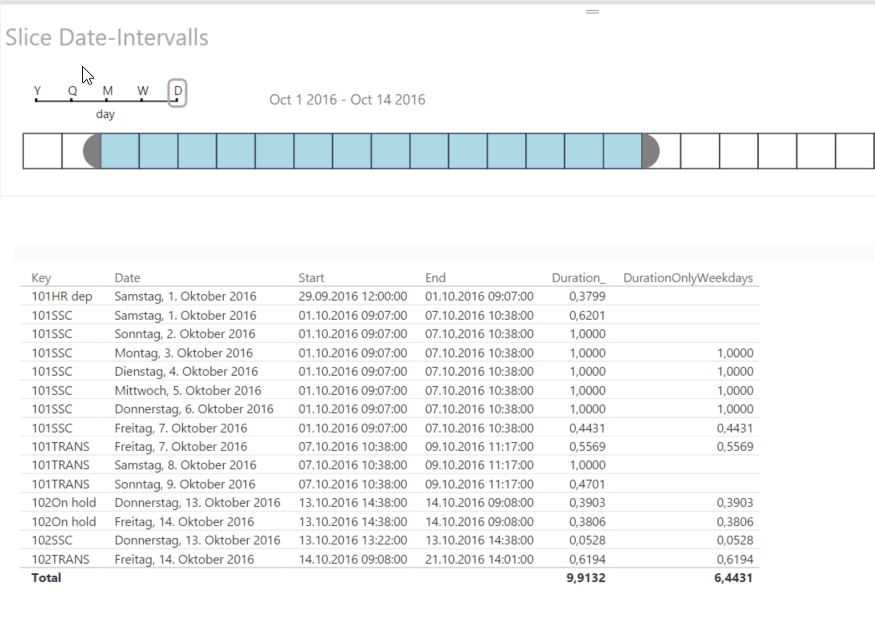
While it is fairly easy to calculate the difference between 2 dates in DAX using DATEDIFF, it is a bit more demanding if you want to exclude weekends and holidays or filter the duration on certain date-intervals, so only get a part of it. Also if you want to return on date-time-level instead of only counting net-workdays.This is where this new technique for dynamic duration calculation can come in handy.

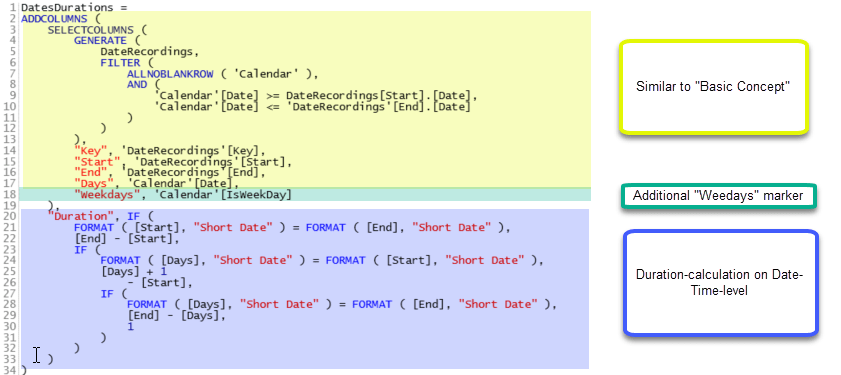
We can use the basic technique that I’ve described here and modify it by adding 2 columns to the calculated table:

  1. Duration per day on a Date-Time-level
  2. Marker-column if weekday or not (this assumes that you have a column in your date-table which indicates if the day shall be considered as weekday or not)

1_duration_calculation

The duration-calculation needs to handle the cases where only parts of the day are to be counted: If the event starts and ends at the same day, the difference between those figures has to be taken. If on the other hand, the event spans multiple days, for the start-day the time until the end of the day has to be calculated while for the end-days the time from the beginning of the day is the right one. The other days count as full days with 1. Hence these 4 cases.

Let’s have a final look at our simple measures:

Read more

Import Measures from different Tabular Models using DAX Editor

Marco Russo has created a great tool for SSAS tabular that lets you edit measure definitions (which you should read here first if you haven’t done yet).

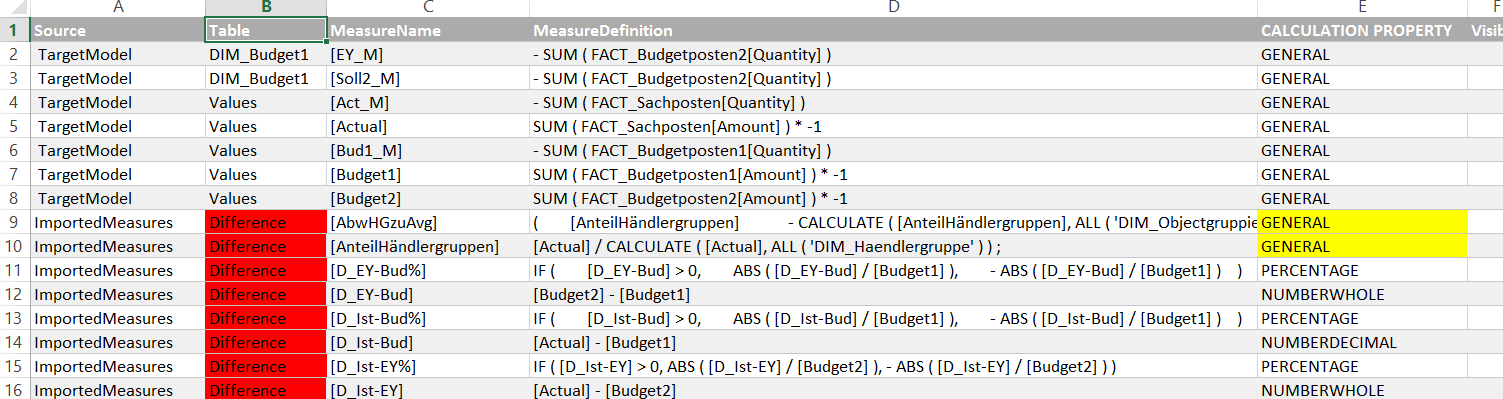
In this article I’ll show you how you can use it to import multiple measures from different tabular models into your current model.

The way the DAX-editor works is that it exports the existing measures from your model as a text file and imports them back after you’ve done your transformations. My technique will add the measures from the other model automatically to the existing measures so that both can be loaded back into your current model. In addition to that, you will have a UI with a process that guides you through the necessary steps that come with a task like that, which are:

  • select only those measures that you actually need
  • check references to existing measures and columns from the import model and manage their handling
  • allocate the tables into which these measures are going to be imported

This will all be done in a Power Query-powered Excel workbook that you can download here:   DaxEditorEditor_Final2.xlsm

These are the steps:

Read more

Easy Profit and Loss and other (account) scheme reports in Power BI and Power Pivot using DAX

This is about an easy way to create typical finance reports like Profit and Loss using DAX that (unlike all other solutions I’ve come across so far) can be handled with very basic knowledge of this language like this:
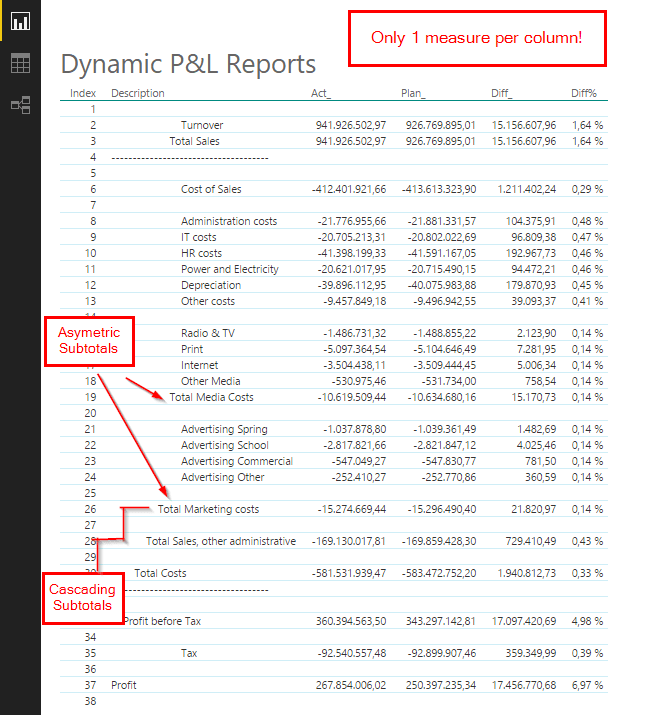
Image1

The trick

The trick that makes my solution so easy lies in the fact that it requires no aggregation functions of the output-mediums like:

  • pivot-tables: who struggle with asymetric logic and are not available in Power BI so far
  • cubefunctions: who are not available in PowerBI so far

So we have to build the details as well as all aggregations into the solution as it is and don’t rely on/use any aggregation functions (This means for Excel: We have to turn off subtotals as well as totals in our pivot tables. It means for Power BI: Hurray! Finally a solution where the lack of pivot-tables doesn’t matter).

How to

The aim is to create a table/matrix with (account) details and aggregations into the rows and different slices of time-Intervalls or comparisons into the column sections. As for the columns, this will be covered by measures like [Actuals], [Budget], [PreviousPeriods], [Differences in all shapes…]. And – as the values in the columns should be the same – I’d prefer to use only one measure per column – that is fully sliceable and works on all (sub-) totals of course. … Ok – so some dreams later I found it:

MyMagicMeasure := CALCULATE([StandardMeasure], AccountsAllocation)

So you just wrap simple measures like Act=SUM(Fact[Amount]), Plan=SUM(Plan[Amount]), DiffPlan_Act=[Plan]-[Act] … into the CALCULATE together with the bridge-table as the filter-argument:

This is the many2many-technique in it’s simplest form (PostFromMarcoRusso). It all goes via simple aggregation on all accounts found in the filter context:
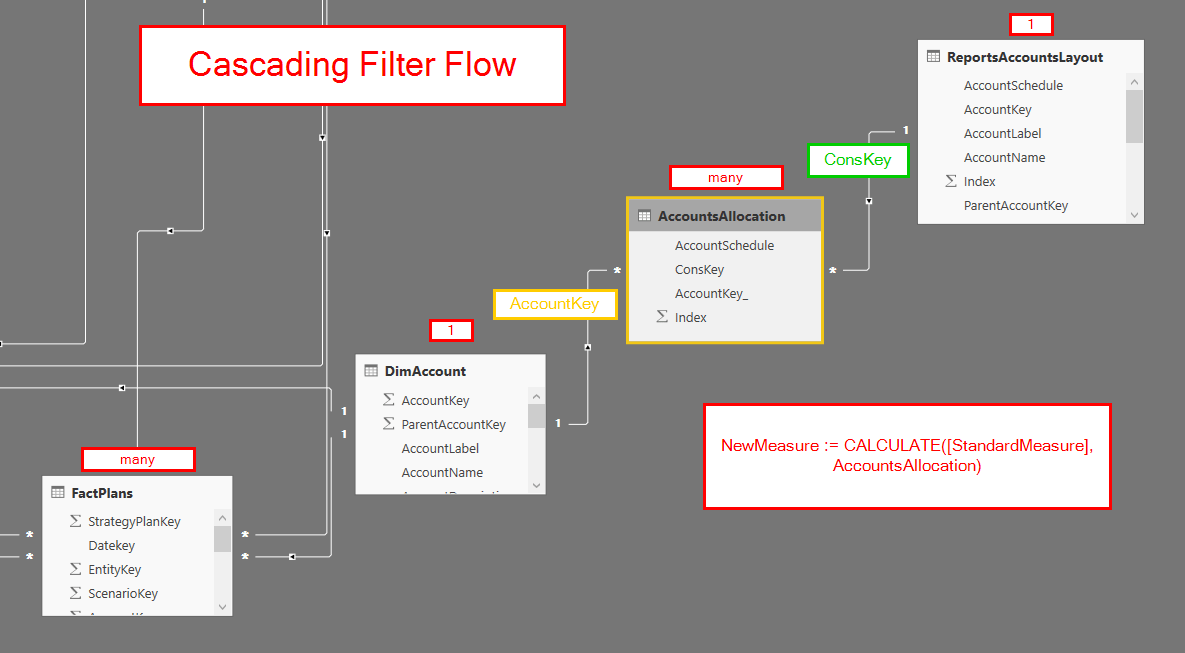
Image4

Our  bridge-table “AccountsAllocation” consists of one account number per simple account and has multiple rows for the (sub-)totals – being all accounts that belong to them:
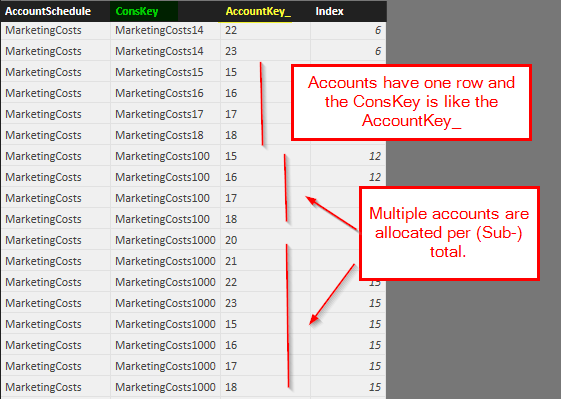
Image5

The ConsKey stands for the row in our report (1) and the AccountKey_ holds the account numbers that are going to be aggregated (many (for the sub-totals) and 1 for the account-rows). So all we need is this unique and simple aggregation on AccountKey for every row in the report – with a filter from the Reports-table via our bridge table to the DimAccounts, who then filters our FactTables: 1 -> many -> 1 -> many.

Read more

Advanced type detection in Power BI and Power Query: Table.ClassifyMixedColumnTypes

This is not a proper blogpost, just a quick share of a function I’ve created today which I think will be very useful for others as well: Automatic type detection will assign only one type to a column, but sometimes there are multiple types in it and then the type “any” will be applied, which means no … Read more