SQL-query folding bug still alive and sucking in PowerBI and PowerQuery in Excel

Edit: There is currently no interest at Microsoft to change the current behaviour: http://community.powerbi.com/t5/Issues/Bug-Query-folding-not-working-with-non-SQL-datasource/idi-p/225100#M11611 . I found that this workaround works also pretty well (faster in most cases), as long as your filter-tables are not too long: http://community.powerbi.com/t5/Desktop/Parameterized-SQL-Query-with-query-folding/td-p/171503 Are your SQL queries that filter with a non-SQL-table slow in PowerBI and PowerQuery in Excel? Then … Read more

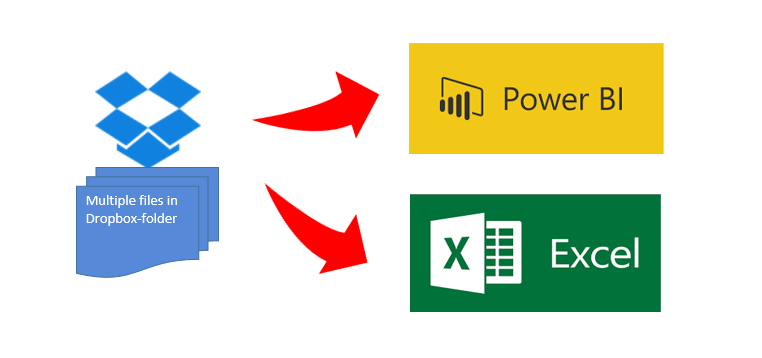
Import multiple files from Dropbox folder into PowerBI and Excel (via PowerQuery) at once

Edit 2nd October 2021: Unfortunately this method doesn’t work any more, as Dropbox now requires proper OAuth authentication.

Below you’ll find a video where you can see how easy it is to import multiples files from a Dropbox folder into PowerBI or Excel at once.

There are 2 different methods to grant access to your Dropbox: Grant access to the whole Dropbox or to a (newly created ) folder only. I will present the folder-method, as granting access to your whole Dropbox is really dangerous in my eyes – unless you are prepared to share it all publicly: The token generated will allow anyone to read your data. So also all those people who you’ve sent this beautiful dashboard where you just forgot that it contained your token…

To make it super-easy for you, I’ve created a function that you can download here: fnDropboxFolder

The code for it I’ve got from this thread in the PowerBI forum, which contains some additional useful information and a link to a solution with a custom connector for PowerBI, making it easy to deploy in a corporate environment (designed by Igor Cotruta).

Just watch how it works:
Some screenshots to follow along:

Read more

Unpivot by number of columns and rows in PowerBI and PowerQuery in Excel

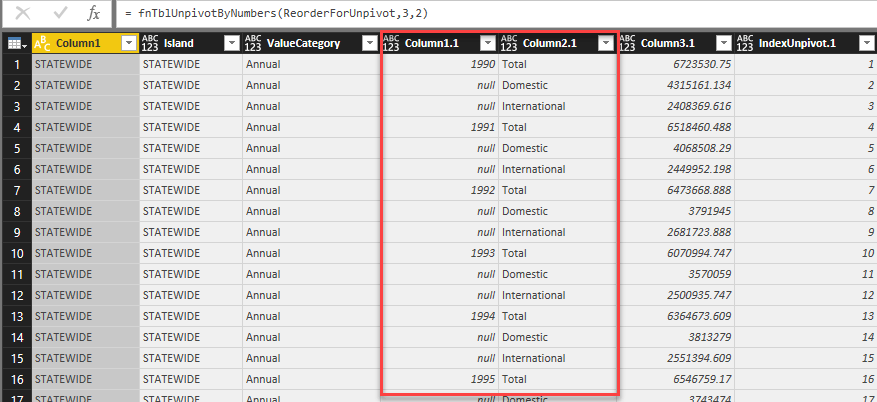
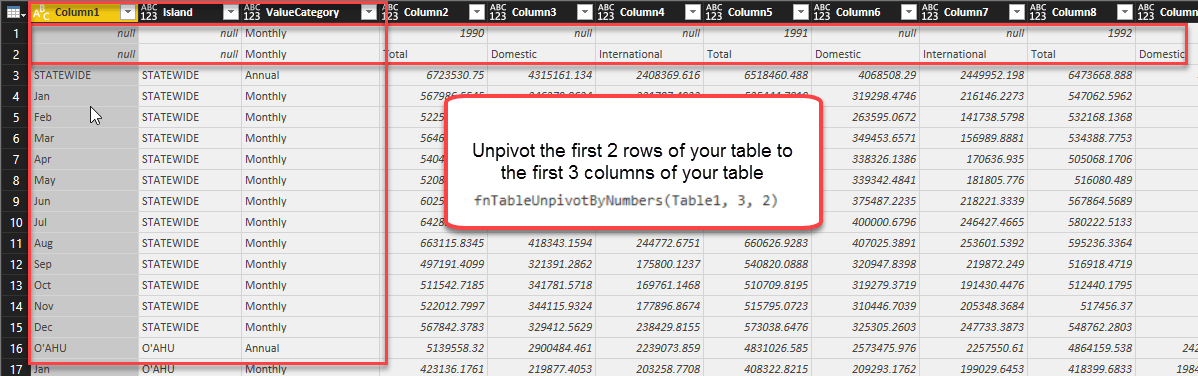
Today I’m sharing with you one of my killer M(inja)-strikes: Unpivot a table by simply passing the number of columns that shall remain (at the left side of the table) and the number of rows (who hold the header-information) as parameters to them.

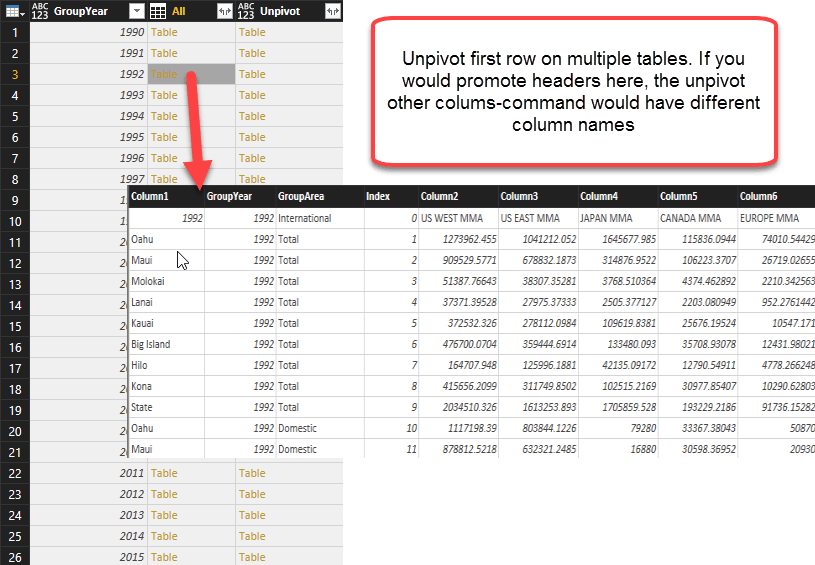
This is not only incredibly flexible (multiple header rows), but also very robust: You don’t have to care about changing column names for future refreshed or when you apply it to partitioned tables where the partitions itself have different column names already.

Unpivot by numbers

here: 3,2 (number of columns, number of rows):

returns:

Flexible and robust:

Your table has to be prepared as follows:

  • The columns that shall NOT be unpivoted must stand on the left side of your table. Their number must match the 2nd parameter you feed into the function (“FirstNColumnsToKeep”)
  • The header rows that shall be unpivoted must sit in the first rows of your table. So one of them still sit as the header row itself, you have to demote it (Home -> Transform -> dropdown at “Use First Row as Headers” -> “Use Headers as first rows”)

M-Code

Read more

Performance Tip: Partition your tables at crossjoins where possible – PowerQuery PowerBI

Recently I’ve distributed some techniques for partial matches or relative joins between tables using PowerQuery or the query editor in PowerBI. They are very flexible and powerful – yet slow.

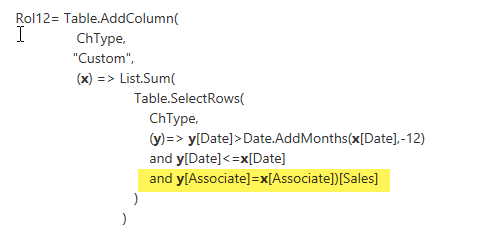
To improve performance you can check if there is a chance to “partition” your table using a Table.Group. If you have an equality expression in your statement like we had in our rolling-12-months-exercise here for example:

You can boost performance into a different dimension by grouping your table on the “Associate”-table instead like this:

Read more

Performance difference between Excel and PowerBI with M is huge!

I knew that the performance of M in the query editor of PowerBI was much better than in Excel, but only today I discovered the incredible difference we actually have here:

If you want to apply the BOM-solution I’ve posted here, you’ll soon discover that the performance in Excel starts to suck with large datasets. Performance decreases exponentially and my sample datasets with 4 levels and 100k rows didn’t went through, 16 GB RAM constantly at the limit, unable to do any other task at the same time.

In contrast, performance in PowerBI totally blew me away: Memory management is different. Rise in RAM-consumption was always below 3 GB, even with my largest dataset (a 5-level 1Mio (!) rows BOM table that exploded to 3,8 Mio rows). Also no sweat in CPU, so I was able to easily perform other tasks at the same time on my laptop.

Read more