Multiple replacements or translations in Power BI and Power Query

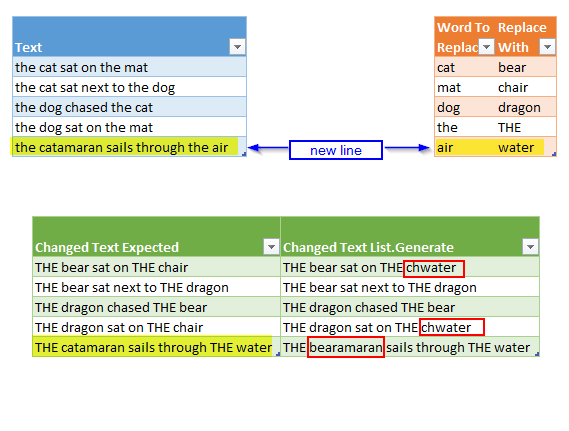
A common task when cleaning data is to perform multiple replacements at once. When dealing with “translation tables” you might have come across Chris Webb’s solution using List.Generate to deal with this. This works fine – but might deliver unexpected results if you don’t consider it’s implications properly. Say we add lines like shown below, then we might expect the result as highlighted in yellow:

Image2
Multiple replacements using 2 different techniques

So hey – what happened here?: Our catamaran turns out as a bearamaran and the chair turns to chwater.

Read more

How to hack yourself in Power BI (and Power Pivot?)

Reading Gerhard Brueckl’s post on how to visualize SSAS calculation dependencies reminded me of my post about a similar technique from December last year.

His solution has features that would do my version good as well:

  1. Directly connect to the model to be analysed without clumsy export of measures to txt via DAX Studio
  2. Including calculated columns? No!: Who does calculated columns in DAX in PBI? Do them in the query editor using M instead (more functions, better compression, easier merge of model to SSAS once needed)

So wouldn’t it be cool if we could just add a documentation page to our current model – “all in one” so to speak? Here you find how to “hack”-connect with Excel to your current Power BI Desktop-Model.

So what works with Excel should work with PBI as well – just that we need to connect via the query-editor, using M. And of course: As we’re hacking ourselves here (i.e. the file we’re currently working on), we need to save our changes in order to make them being shown.

Read more

PowerBI Best Practice: Views for non-database data

Marco Russo has shared bunch of very valuable PowerBI best practice tricks for designing your PowerBI model here: http://www.sqlbi.com/articles/data-import-best-practices-in-power-bi/?platform=hootsuite

One of them being never to directly import a database table, but to use a view instead as a kind of abstraction layer. It separates your business logic (that determines how the tables should be structured that will be passed into the data model) from your actual/incoming data (your source systems, whose table structure you cannot change and which might change itself over time).

This is really important in my eyes, as it will be only a question of time when your underlying data will change and the last thing you want to do is to edit all datamodels or even reports in your (multiple and possibly decentralized) PowerBI files!

But what do you do if your data don’t come from databases or you have no possibility to create views on them?

Read more

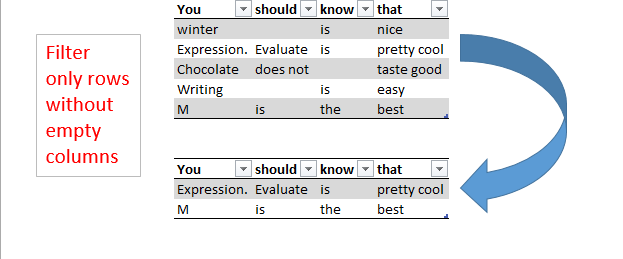
Select rows that have no empty fields using Expression.Evaluate in Power BI and Power Query

This article describes the use of Expression.Evaluate as a very helpful “swiss-army-knife”-method for your Power BI toolbox as it has many more use cases than the one described below. It lets you perform repeating tasks without using functions and can even replace recursive operations in some cases – but that’s a topic for a later blogpost. Today we start with a simple task:

If you want to filter rows only where none of the fields/columns are empty, you’d either pass not-null filters into every single column (which is tedious and not dynamic), transpose or add an index column, unpivot and filter from there (both might drag performance down on large tables).

Using Expression.Evaluate will create a dynamic approach that doesn’t force you to transform your source table nor to directly specify your column names: It will take in a text string and execute it as if you’ve been written it manually into the formula. If you manage to let this textstring be created dynamically according to the different tables you’re going to pass in – Expression.Evaluate will make sure that these individual statements will be executed accordingly.

So for a table containing Column “A” and Column “B” the filter statement would look like this:

Read more