“Just because you could doesn’t mean you should”… So I’m asking the Power Query and M fans & experts here if we “should” pipe M: Background: With M you can nest your expressions like in Excel to group commands that belong together. But this has some disadvantages like: Reading: the execution order of the functions doesn’t match … Read more
Especially when working with JSON-data, you might end up with a column that has elements of mixed types in it. The expand column – arrows will be missing, but some elements still need to be expanded, like here: But there is an easy way to fix it: Transform to expandable column Table.TransformColumns(Source, {{“Column1”, each if Value.Is(_, type list) … Read more
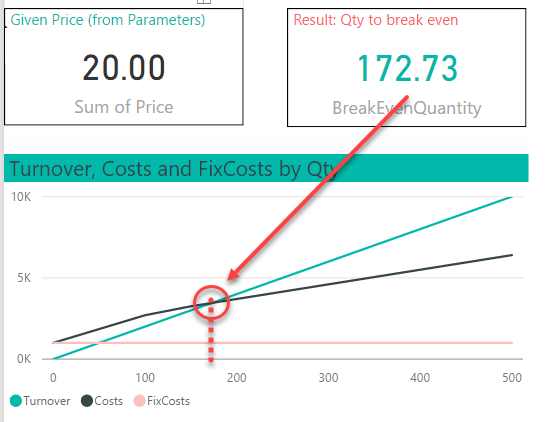
A break-even analysis tells you at which value of the parameter in question your profit-calculation will turn positive (link). Here we need to sell at least 173 at a given price of 20 before we’ve recovered all our costs:
If your variable costs are constant, you can solve it by this formula:
BreakEvenQuantity = Total Fixed Costs / (Unit Sale Price - Unit Variable Costs)
You’ll find tons of examples on how to do this in Excel like here.
Non-linear cost structure
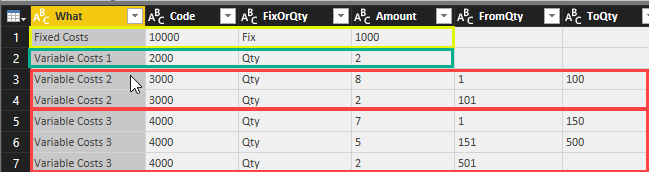
But in real life, the variable costs often depend on certain quantities as you get discounts for purchasing large amounts. The following table shows a cost structure with fix costs in row 1. The 3rd column “FixOrQty” indicates if the cost item is fix or dependent on the quantity (Qty). The 2nd row contains a variable cost that is constant with 2 for all quantities. Row 3&4 show a variable cost of 8 for quantities up to 100 and if you purchase more than 100 the costs will be lowered to 2 for all additional quantities. Row 5-7 have a similar structure, but with 3 quantity ranges:
In finance & accounting, you very rarely report the figures with the signs of their source systems, but switch (certain) signs according to different needs. Instead of using unary operators for it, I’ll present an easy and dynamic way for it in Power BI and Power Pivot using DAX. It will cover the following 3 main scenarios:
1_SwitchAll: All signs are switched (red)
2_SwitchExpLiab: Expenses and liabilities are switched back to their original values (green)
3_BWT_Indiv: Only the main figure for expenses (or liabilities) carries a minus, all following positions specifying the expenses are (principally) reported as positives (blue)
Switching signs in Power BI and Power Pivot without unary operators
I’m using the sample data from this article but changed the source-data to a double-bookkeeping structure. There signs are used and the transaction entries in your ledger table always add up to zero. This is a method that prevents errors when posting and can also be used to prevent errors in reporting. If you keep the signs in your reporting system, all you have to do is add up the relevant figures and the returned (absolute) figures will always be correct. If you have read my previous articles on Easy P&L, you have seen this method in action: No minus-operation there, just a simple stupid adding of all accounts who fall into several (sub-) total categories via the bridge-table.
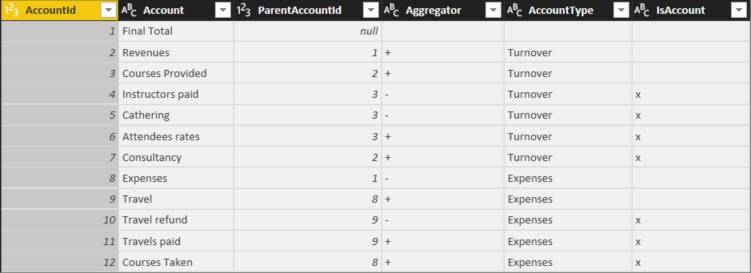
The Account-table also contains of (sub-) totals and the column “AccountType” shows if the positions are regarded as Turnover (Revenue) or Expenses:
Table “Accounts”
1_SwitchAll
My values on “1_SwitchAll” corresponds to “FinalValue” in the article above. The revenues come from consultancy and coursed provided. But the revenue for courses don’t just consist of attendee rates, but the costs for catering and paid instructors shall be deducted (highlighted in yellow). So the “good” numbers that contribute to cash in your pocket shall be reported without a sign and the “bad” numbers that result in an outflow of cash shall be reported with a minus. Within the expenses category, the costs carry a minus and the travel refunds (highlighted in orange), which are cash positive, are reported as positives.
2_SwitchExpensesLiabilities
Another requirement that is often used for balance-sheet-reporting or reports that only report on cost-situations, require that the costs or liabilities are reported without signs. … Principally, because the reimbursements/cost deductions shall be reported with an opposite sign (to show the adverse effect to the cashflow). This is what “2_SwitchExpLiab” shows (not covered in the article).
3_BWT (“BossWantsThat”)
Last but not least comes a typical “BossWantsThat”-requirement: Basically some strange stuff that you just have to deliver. Here the main categories “Revenues” and “Expenses” shall be shown with the signs that reflect the cash-direction, but all specifications that follow below shall be reported without signs (again: Principally, because positions with opposite cash-effects than the main category shall carry inverted signs).
Edit 7th Feb 2017: Friendly reader Roknic pointed out in the comments below that there’s actually an existing function for it in M: Table.TransformColumnNames 🙂
So the first of my example below would actually look like this:
Table.TransformColumnNames(Source, each Text.Replace(_, " ", "_"))
But still keeping my original post here, as the transformations in them might help for other use cases:
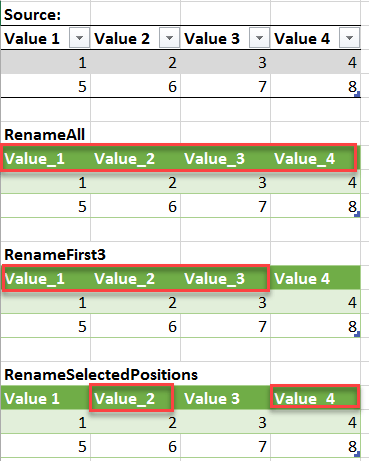
If you want to rename all of your table’s columns with a common rule, like “replace all spaces by underscore” or just “delete all spaces”, check out this easy method:
The above formula will replace all spaces (” “) by underscores (“_”).
How does it work:
The 2nd argument in the Table.RenameColumns-formula is a list of lists, just like in Table.TransformColumnType from this article. So we apply the same technique here: List.Transform transforms a single element from a list into a list-item, whose 2nd argument will be calculated with a Text.Replace-function.
Variations:
Rename Columns Variations
Only replace FirstN or LastN elements from the column names:
Today I discovered that we can use conditions in many of the N-selecting functions where one/I would normally expect just a number-expression for the N: Table.RemoveFirstN( table as table, optional countOrCondition as any) So apart from being able to select a certain number of rows to be removed, we can pass a condition (as function). This condition will … Read more