
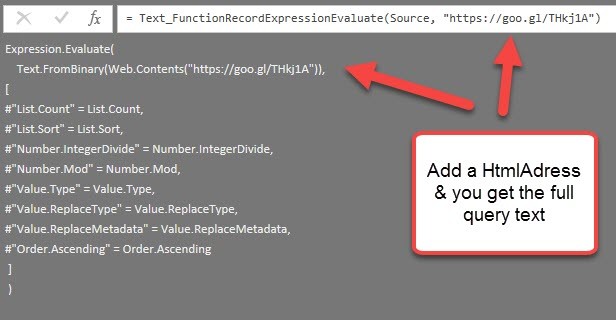
Automatically create function record for Expression.Evaluate in Power BI and Power Query

Some time ago I wrote a blogpost on how to create a function library in Power BI or Power Query (http://www.thebiccountant.com/2017/08/27/how-to-create-and-use-r-function-library-in-power-bi/). There I also presented a way to pull that function code automatically from GitHub.

Problem

In that code I used the function Expression.Evaluate to execute the imported text and create functions from it. The inbuilt functions that I’ve used in that code have to be passed as an environment record at the end of the expression. I’ve used #shared for it, as this returns a record with all native M-functions and is quick and easy to write (if environments are new to you, check out this series: https://ssbi-blog.de/the-environment-concept-in-m-for-power-query-and-power-bi-desktop/ ). But as it turns out, this can cause problems when publishing to the service unfortunately (https://social.technet.microsoft.com/Forums/ie/en-US/208b9365-91e9-4802-b737-de00bf027e2a/alternative-calling-function-with-text-string?forum=powerquery – please leave a vote if you would like to use #shared in the service as well).
Solution

Read more

Should we pipe M?

“Just because you could doesn’t mean you should”… So I’m asking the Power Query and M fans & experts here if we “should” pipe M: Background: With M you can nest your expressions like in Excel to group commands that belong together. But this has some disadvantages like: Reading: the execution order of the functions doesn’t match … Read more

How to hack yourself in Power BI (and Power Pivot?)

Reading Gerhard Brueckl’s post on how to visualize SSAS calculation dependencies reminded me of my post about a similar technique from December last year.

His solution has features that would do my version good as well:

  1. Directly connect to the model to be analysed without clumsy export of measures to txt via DAX Studio
  2. Including calculated columns? No!: Who does calculated columns in DAX in PBI? Do them in the query editor using M instead (more functions, better compression, easier merge of model to SSAS once needed)

So wouldn’t it be cool if we could just add a documentation page to our current model – “all in one” so to speak? Here you find how to “hack”-connect with Excel to your current Power BI Desktop-Model.

So what works with Excel should work with PBI as well – just that we need to connect via the query-editor, using M. And of course: As we’re hacking ourselves here (i.e. the file we’re currently working on), we need to save our changes in order to make them being shown.

Read more

How to share M-code in PowerBI and Power Query

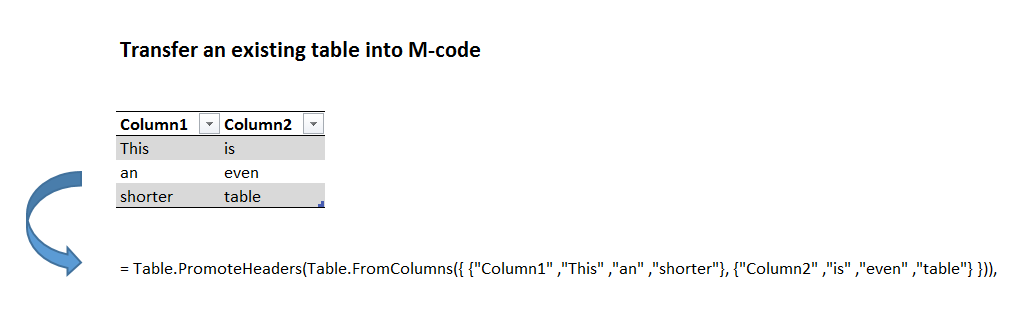
One of M’s advantages is that you can share M-code in textform and it will run instantly on a different computer. So no need to actually exchange a file. Provided that you pass the data on as well with your code, like you can see in this example.

But it would be a bit tedious to type in all the data manually – so let’s M do this automatically for us:

1 Automatically transfer a list into textform to share M-code

let
qList= {"This", "is", "a", "pretty", "short", "list"},
Source = qList,
CoreString = Text.Combine(List.Transform(Source, each Text.From(_)), """, """),
FullString = "= {"""& CoreString &"""}"
in
FullString

2 Automatically transfer a table into textform to share M-code

let
qTable= Table.PromoteHeaders(Table.FromColumns({ {"Column1" ,"This" ,"an" ,"shorter"}, {"Column2" ,"is" ,"even" ,"table"} })),
Source = qTable,
DemoteHeaders = Table.DemoteHeaders(Source),
ListOfColumns = Table.ToColumns(DemoteHeaders),
ConvertToTable = Table.FromList(ListOfColumns, Splitter.SplitByNothing(), null, null, ExtraValues.Error),
CoreString = Table.AddColumn(ConvertToTable, "Custom", each Text.Combine(List.Transform([Column1], each Text.From(_)),""" ,""")),
FullString = "= Table.PromoteHeaders(Table.FromColumns({ {"""& Text.Combine(CoreString[Custom], """}, {""")&"""} })),"
in
FullString

Read more