How Power Query can return clickable hyperlinks with friendly names to Excel

When you use Power Query as an Excel-automation-tool rather than just to feed the data model, you might want to return clickable hyperlinks that carry friendly names. This doesn’t work out of the box, but with a little tweak it will be fine:

The trick

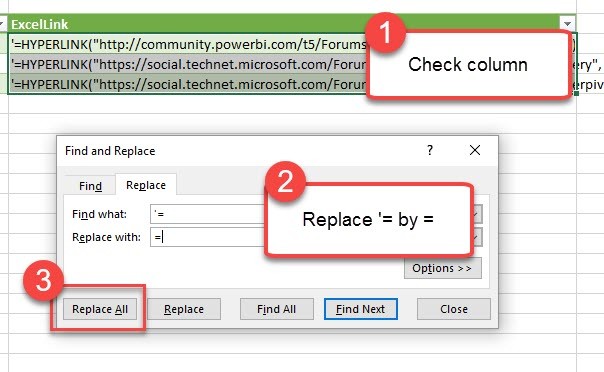
Return a text-string that contains the Excel (!)-formula for hyperlinks, preceded by an apostrophe  ‘ . After the data has been loaded to the sheet, check the column and replace ‘= by = to activate your Excel-formula:

Activate the HYPERLINK formula by replacing ‘= with =

You can then format the column to “Hyperlink”:

Read more

How to open a complex JSON record in Power BI and Power Query

Today I’ll show you a very useful technique how to deal with a JSON record that contains a wild mixture of different elements like this: If you click on one of the expandable elements, their content will be shown, but you’ll loose all the “surrounding” information (metadata) that is visible now. This is often an … Read more

How to import from Excel with cell coordinates in Power Query and Power BI

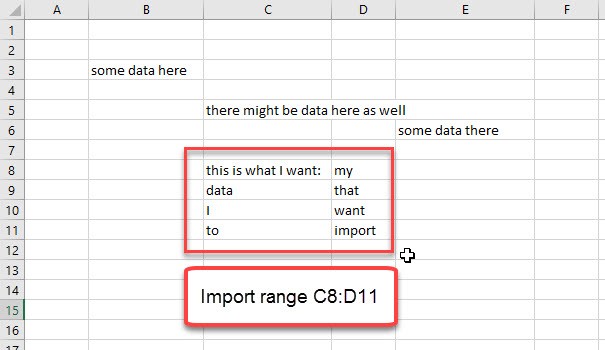
There might be occasions where you want to import data from Excel into Power Query or Power BI using cell coordinates like a range from E3 until G9 for example (“A1 cell reference style”). The function I provide below also caters for the potential pitfalls of this task that Maxim Zelensky has described in his article.

Background

If your worksheet has one leading empty row and column, the import will ignore them and automatically return the range starting from B2. So to fetch the range E3:G9 you have to delete the first row and the first 3 columns. But as Maxim has found out, remaining formats on empty cells will lead to an import of empty rows and columns. So the number of rows and columns to delete will vary and is hard/impossible to predict.

Method

The range that PowerQuery or PowerBI will import is stored in the Excel-file already in the sheet-data and the xml looks like this (“Sample3” from Maxims data):
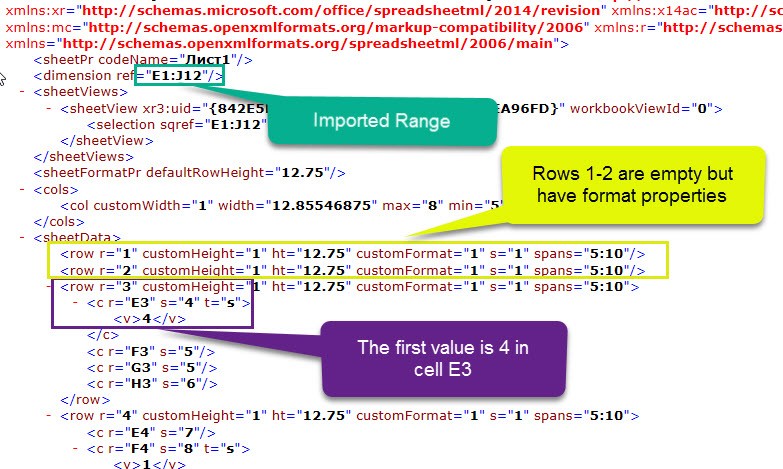
The imported range is E1 till J12, as the first rows contain formatting instructions, and will therefore be imported as well. In the 3rd row E3 shows up with the first value, which is surrounded by “<v>”.

This is how it looks like in the Xml.Table in the query editor:
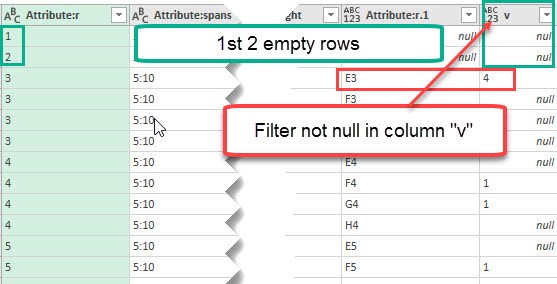
Task is to calculate the number of rows and columns delete, considering the individual offset that is caused by the formatted empty cells.

Code

So I’ve cooked together these ingredients in a pretty massive code that you can download here: fnImportFromExcelCellCoordinates.txt

How to use the function

Read more

New M-function: Table.TransformColumnTypesToFirstRowsTypes for PowerBI and PowerQuery

The following function automatically transforms all columns to the types that have been detected in the cells of its first row. Provided they come as: Number, date or text (but you can add additional type conversions if you need them.). It also has some rough edges: If the first value is empty, the column will … Read more

How to expand a column that cannot be expanded in Power BI and Power Query in Excel

Especially when working with JSON-data, you might end up with a column that has elements of mixed types in it. The expand column – arrows will be missing, but some elements still need to be expanded, like here: But there is an easy way to fix it: Transform to expandable column Table.TransformColumns(Source, {{“Column1”, each if Value.Is(_, type list) … Read more

Table.TransformColumns – alternative in PowerBI and PowerQuery in Excel

This article shows a trick for a little problem that annoyed me for quite some time: How to get Table.TransformColumns transforming the values of a column with a reference to a value (from the same row) of another column?

1 Replace text by a value from another column

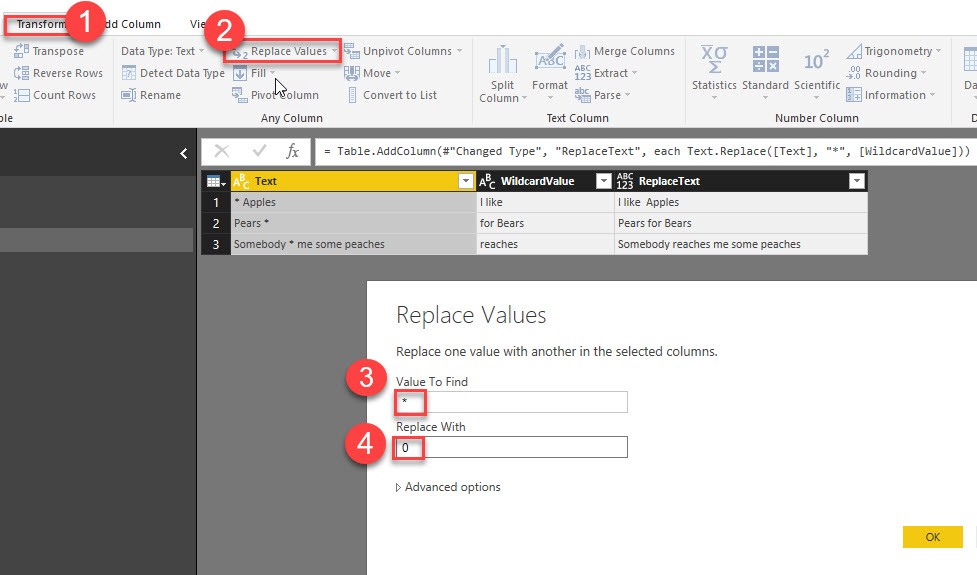
So instead of adding a new column where the “*” is replaced by the value from column “WhildcardValue”, I just want to perform the replacement-operation in the original “Text”-column, so that I don’t have to rename and delete the other columns later:

So far, I always ended up fighting with Table.TransformColumns-function and got quite frustrated because I couldn’t find a way to reference the (row-) value of the other column. As it turns out, I was fighting the wrong target here, because Table.ReplaceValue is actually the saviour for this challenge:

1.1 Check column “Text” -> Transform -> Replace Values

So in (4) we just filled in a dummy-value, which we’re going to replace with a reference to the desired column: “each [WildcardValue]” like this:

Read more