Remove repeating characters from a string in Power BI and Power Query

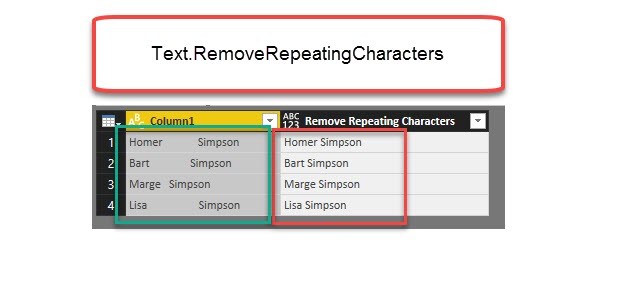
Repeating spaces often cause problems when cleaning up your data. My new function “Text.RemoveRepeatingCharacters” can come to the rescue here. Imagine you have a table like this: Challenge To further work with this data, it would often be best if there was just one space between the words and not many. The following function will do this for you: … Read more

Date.DatesBetween to retrieve dates between 2 dates in Power BI and Power Query

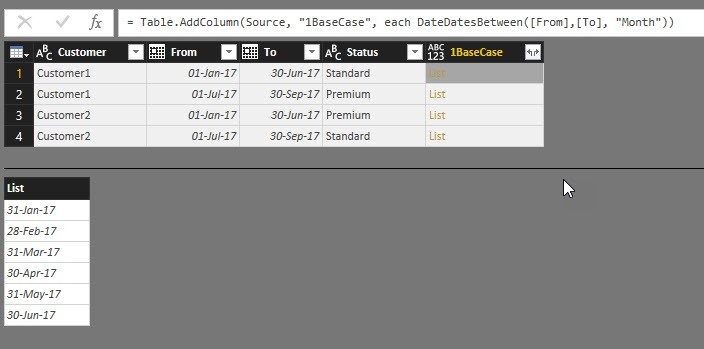
Today I’m sharing a handy function with you that allows you to retrieve all or just a couple of dates between 2 given dates: Date.DatesBetween.

Usage

This function takes 3 parameters:

  1. From- or Start-date
  2. To- or End-date
  3. A selection of ONE of these intervals: Year, Quarter, Month, Week or Day

All dates will be created at the end of the chosen interval: So if you want to analyse events with a duration for example, where you want to transform your data to show one day per (monthly) event, this function generates month-end-dates for every month within the timespan. Please not that if the To-/End-date is within a month, the last element of the list will NOT be that day, but the day of the end of that month.

The default-value for the 3rd parameter is “Day”, so if you omit the specification, the function will return a list of all days in between.
Read more

Right Aligning Text in Power BI: Format Improvements for Easy Profit&Loss Reports

Edit 14-Dec-2017: Now that we can right-align text measures in PowerBI, a SWITCH-measure like here: http://www.thebiccountant.com/2017/04/24/kpis-in-easy-profit-and-loss-for-powerbi/#comment-719 is the best alternative in my eyes. No need to read on 🙂

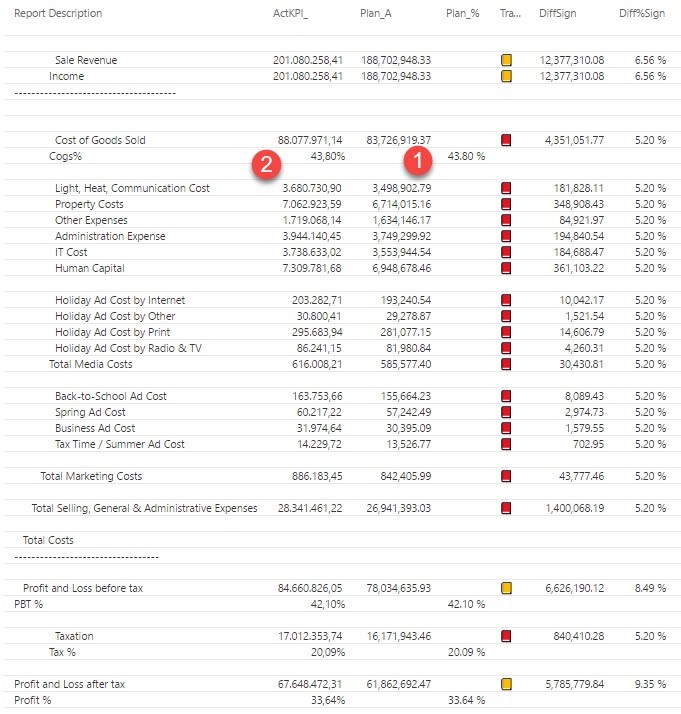
As shown in my last part of the Easy P&L-series, Power BI unfortunately still lacks some fundamental formatting options like:

  1. Right aligning text (please vote for it here: Right align text in Power BI – edit 15th Nov: We’re there: Right aligning text is available now: https://powerbi.microsoft.com/en-us/blog/power-bi-desktop-november-2017-feature-summary/)
  2. Display numbers in different formats within one column (either to be implemented as a “neutral” format for Switch-measures, where the referenced measures carry the formatting attributes already, or as a part of a formula-based conditional formatting) (Thanks Matt for the voting-link: Conditional format SWITCH measure)

So for the moment I choose between the following workaround-options:

  1. Display %-values in a separate column
  2. Format numbers as text and fill up with spaces so that all end up right aligned
  3. See the suggestion from Matt Allington in the comments below (very nice)

Right aligning text or percentage figure in new column

For both options the preparations are the same:

Read more

Bulk-extracting Power Query M-code from multiple pbix files in Power BI

Edit: Unfortunately this method isn’t working any more for files with the latest Power BI file formats (including the enhanced metadata format).

If you want to audit or analyse the M-code of multiple Power BI pbix-files at once, you start with either:

  1. a from-folder query where you filter all files of interest or
  2. a table with the full file-path-specification of the files to be analysed in “Column1”.

Then you add a column where you call the function that extracts the M-code:

Function to extract the M-code

https://gist.github.com/dbb3cd22d0825cb7d0d8f95d1ac35a31

This code is a variation of Igors function which retrieves the code from an opened pbix-file. So now you can apply it to closed pbix-files as well.

For method 1 you call it like so (as it takes the full string for the file-path as its parameter):

Read more

Create a function library in Power BI using M-Extensions

Having the ability to use own M-function the same way than native functions in Power BI and Excel has been one of my biggest wishes for quite some time. So I was more than amazed to see Frank Tonsen’s comment showing a way to do exactly this in PowerBI, that has been available for almost half a year now: M-Extensions as part of the custom connectors.

Unlike custom connectors who show up in the import-dialogue and provide a custom tailored option for importing data or creating queries, M-Extensions don’t show up explicitly anywhere in Power BI: They just do their M(agic) job to make the functions that you’ve defined in them accessible, as if they were inbuilt native functions: Type their name into the formula bar like this (1):

And enjoy the function description (2: if you’ve specified it in the definition, which is optional):

Simplest example

  1. Your functions: Number.Double and Number.Triple
  2. Combined with the keyword “shared” and separated by “;”
  3. Prefix by “section MyLibrary” gives this text:
section MyLibrary;
shared Number.Double = (Number as number) =>
2 * Number;
shared Number.Triple = (Number as number) =>
3 * Number;


How to make M-Extensions work

Read more

Guest Post: Recursion in M for beginners

Intro from Imke: “I’m very proud to announce the 1st guest post on my blog written by Daniil Maslyuk. His Twitter slogan: “I am a fan of Power BI and avocados” made it instantly clear to me that this young man has an excellent eye for the essence: Just what it takes to write good blog posts. So I asked him to write a guest post on my blog. As it turned out, he was just about to start his own (XXLBI.com) which many of my readers will know already: It contains some very elegant DAX off the beaten track and is a real pleasure to read. So I’m very happy that he agreed to publish with me as well:”

When I was a school student, a teacher asked me if I knew what my life path number was.

  • What’s life path number?
  • It’s the number you get when you sum the digits of your birth date again and again until you get a single-digit number

Example: if you were born on 25 December 1963, your life path number would be 2:

  1.       2 + 5 + 1 + 2 + 1 + 9 + 6 + 3 = 29
  2.       2 + 9 = 11
  3.       1 + 1 = 2

Now, I’m not a big fan of numerology, but I am a big fan of Power Query. What does the former have to do with the latter? Life path numbers are calculated recursively, and you can totally do it in Power Query! In this article, I am going to introduce you to recursion in M.

The easy (but not the good) way

Read more