Bulk-extracting Power Query M-code from multiple pbix files in Power BI

Edit: Unfortunately this method isn’t working any more for files with the latest Power BI file formats (including the enhanced metadata format).

If you want to audit or analyse the M-code of multiple Power BI pbix-files at once, you start with either:

  1. a from-folder query where you filter all files of interest or
  2. a table with the full file-path-specification of the files to be analysed in “Column1”.

Then you add a column where you call the function that extracts the M-code:

Function to extract the M-code

https://gist.github.com/dbb3cd22d0825cb7d0d8f95d1ac35a31

This code is a variation of Igors function which retrieves the code from an opened pbix-file. So now you can apply it to closed pbix-files as well.

For method 1 you call it like so (as it takes the full string for the file-path as its parameter):

Read more

Create a function library in Power BI using M-Extensions

Having the ability to use own M-function the same way than native functions in Power BI and Excel has been one of my biggest wishes for quite some time. So I was more than amazed to see Frank Tonsen’s comment showing a way to do exactly this in PowerBI, that has been available for almost half a year now: M-Extensions as part of the custom connectors.

Unlike custom connectors who show up in the import-dialogue and provide a custom tailored option for importing data or creating queries, M-Extensions don’t show up explicitly anywhere in Power BI: They just do their M(agic) job to make the functions that you’ve defined in them accessible, as if they were inbuilt native functions: Type their name into the formula bar like this (1):

And enjoy the function description (2: if you’ve specified it in the definition, which is optional):

Simplest example

  1. Your functions: Number.Double and Number.Triple
  2. Combined with the keyword “shared” and separated by “;”
  3. Prefix by “section MyLibrary” gives this text:
section MyLibrary;
shared Number.Double = (Number as number) =>
2 * Number;
shared Number.Triple = (Number as number) =>
3 * Number;


How to make M-Extensions work

Read more

How Power Query can return clickable hyperlinks with friendly names to Excel

When you use Power Query as an Excel-automation-tool rather than just to feed the data model, you might want to return clickable hyperlinks that carry friendly names. This doesn’t work out of the box, but with a little tweak it will be fine:

The trick

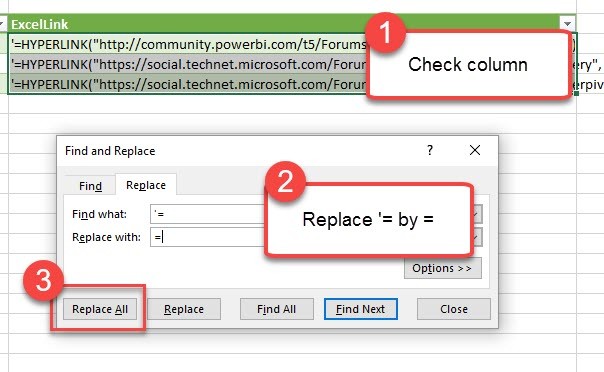
Return a text-string that contains the Excel (!)-formula for hyperlinks, preceded by an apostrophe  ‘ . After the data has been loaded to the sheet, check the column and replace ‘= by = to activate your Excel-formula:

Activate the HYPERLINK formula by replacing ‘= with =

You can then format the column to “Hyperlink”:

Read more

How to open a complex JSON record in Power BI and Power Query

Today I’ll show you a very useful technique how to deal with a JSON record that contains a wild mixture of different elements like this: If you click on one of the expandable elements, their content will be shown, but you’ll loose all the “surrounding” information (metadata) that is visible now. This is often an … Read more

How to create and use an R-function-library in Power BI

Edit 10-10-2017: There is also a (simpler) way to run a custom function library described here: http://www.thebiccountant.com/2017/10/06/create-a-function-library-in-power-bi-using-m-extensions/ . If you go that route, the only point of interest in the article might be how to create your function library automatically.

Once you’ve discovered the huge potential R gives you to expand your analytical toolbox in Power BI (check some tips & tricks in my previous blogpost if you haven’t already), you might wish to have all your awesome functions conveniently at hand when designing new solutions. And thanks to M, there’s actually nothing easier than that: R-function-library in a record (which works just the same for M-functions 🙂 )

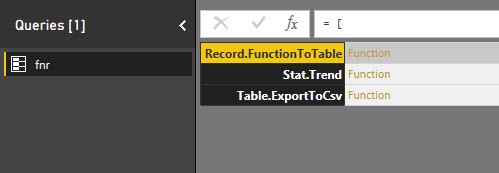
Put your functions into a record (fnr) with the function name as the field name and the function itself as the value: One query to hold them all (and not cluttering your editor pane) and ready to use as if they were native functions:

R-function-library

Use

will export content of my query “Actuals” to csv-file on my desktop.

  1. fnr is the name of the record. You can give it your own name of course, I prefer to keep this as short as possible.
  2. followed in square bracket is the name of the function (record field name)
  3. in ordinary brackets you have the function arguments just like in standard M (record value)

Create record

Read more