In this blogpost I’ll show you how to create a list of account numbers from the totalling syntax that you find in Dynamics NAV account schedules or chart of accounts for example:
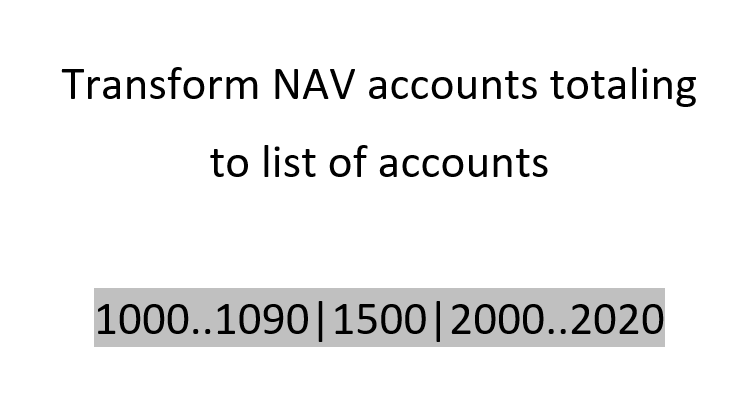
1000..1090|1500|2000..2020
This string shall be transformed into a “real” list of account numbers in the query editor that can be used to select all accounts within those ranges.
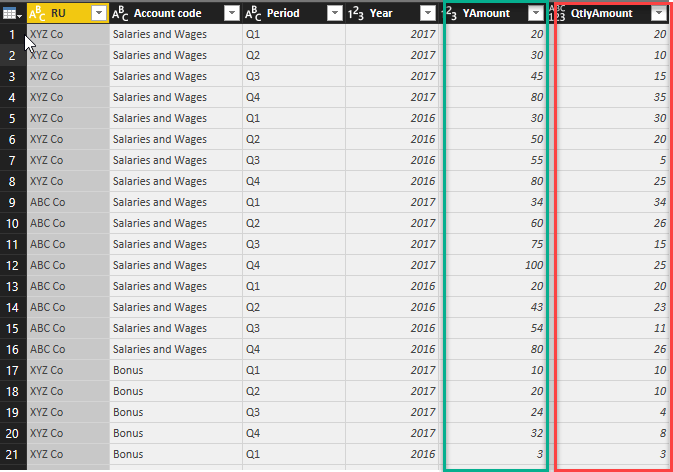
Recently I came across an interesting request where someone wanted to un-cumulate their quarterly YTD-figures (green) into their single quarters values (red) like so (“Unravel cumulative totals”):
Task
Retrieve every Quarters Amount from the Quarter To Date values (“YAmount”)
Method
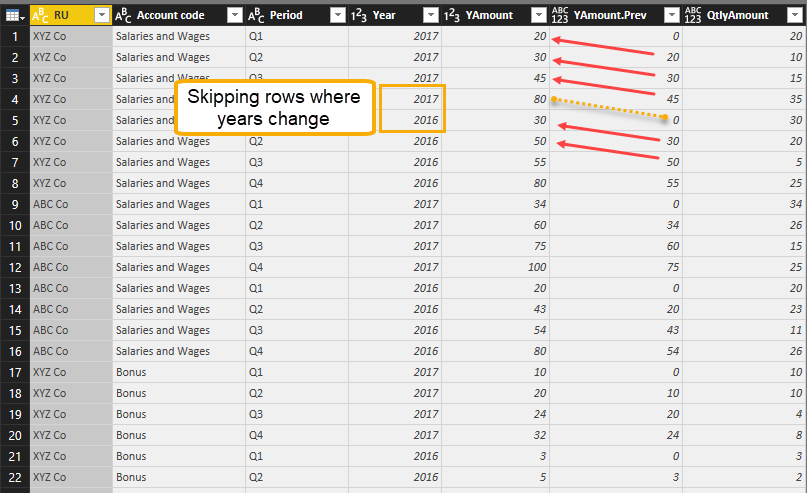
To retrieve this value, one would have to start with the first value in the year. This is also the value of the first quarter, but for the 2nd quarter, one would have to deduct the value of the first quarter from the cumulative value of the 2nd quarter. So basically retrieving the previous cumulative row and deduct it from the current cumulative row. Do this for every row, unless it’s the start of the year or belongs to a different account code in this example:
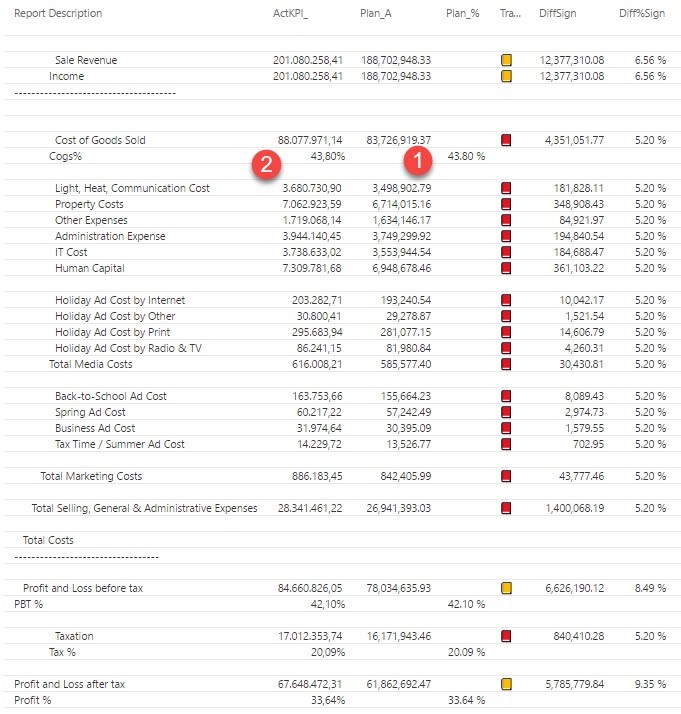
Right aligning text (please vote for it here: Right align text in Power BI – edit 15th Nov: We’re there: Right aligning text is available now: https://powerbi.microsoft.com/en-us/blog/power-bi-desktop-november-2017-feature-summary/)
Display numbers in different formats within one column (either to be implemented as a “neutral” format for Switch-measures, where the referenced measures carry the formatting attributes already, or as a part of a formula-based conditional formatting) (Thanks Matt for the voting-link: Conditional format SWITCH measure)
So for the moment I choose between the following workaround-options:
Display %-values in a separate column
Format numbers as text and fill up with spaces so that all end up right aligned
See the suggestion from Matt Allington in the comments below (very nice)
Right aligning text or percentage figure in new column
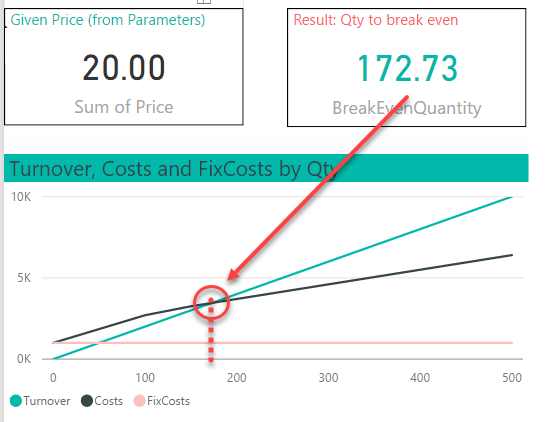
A break-even analysis tells you at which value of the parameter in question your profit-calculation will turn positive (link). Here we need to sell at least 173 at a given price of 20 before we’ve recovered all our costs:
If your variable costs are constant, you can solve it by this formula:
BreakEvenQuantity = Total Fixed Costs / (Unit Sale Price - Unit Variable Costs)
You’ll find tons of examples on how to do this in Excel like here.
Non-linear cost structure
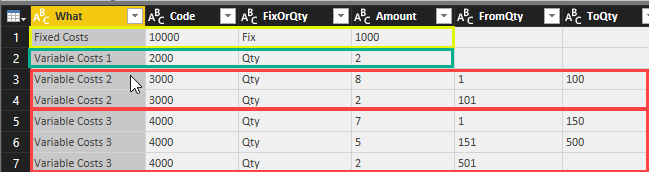
But in real life, the variable costs often depend on certain quantities as you get discounts for purchasing large amounts. The following table shows a cost structure with fix costs in row 1. The 3rd column “FixOrQty” indicates if the cost item is fix or dependent on the quantity (Qty). The 2nd row contains a variable cost that is constant with 2 for all quantities. Row 3&4 show a variable cost of 8 for quantities up to 100 and if you purchase more than 100 the costs will be lowered to 2 for all additional quantities. Row 5-7 have a similar structure, but with 3 quantity ranges:
Edit 2nd October 2021: Unfortunately this method doesn’t work any more, as Dropbox now requires proper OAuth authentication.
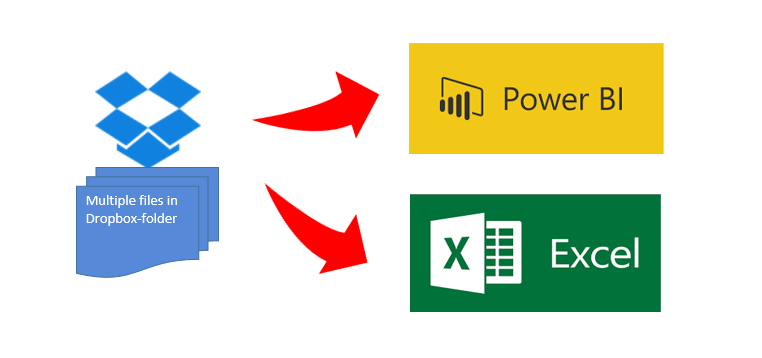
Below you’ll find a video where you can see how easy it is to import multiples files from a Dropbox folder into PowerBI or Excel at once.
There are 2 different methods to grant access to your Dropbox: Grant access to the whole Dropbox or to a (newly created ) folder only. I will present the folder-method, as granting access to your whole Dropbox is really dangerous in my eyes – unless you are prepared to share it all publicly: The token generated will allow anyone to read your data. So also all those people who you’ve sent this beautiful dashboard where you just forgot that it contained your token…
To make it super-easy for you, I’ve created a function that you can download here:
fnDropboxFolder
The code for it I’ve got from this thread in the PowerBI forum, which contains some additional useful information and a link to a solution with a custom connector for PowerBI, making it easy to deploy in a corporate environment (designed by Igor Cotruta).