
The following steps show how to create a new column in a table using existing custom function code. This works in Power BI as well as in Power Query in Excel:
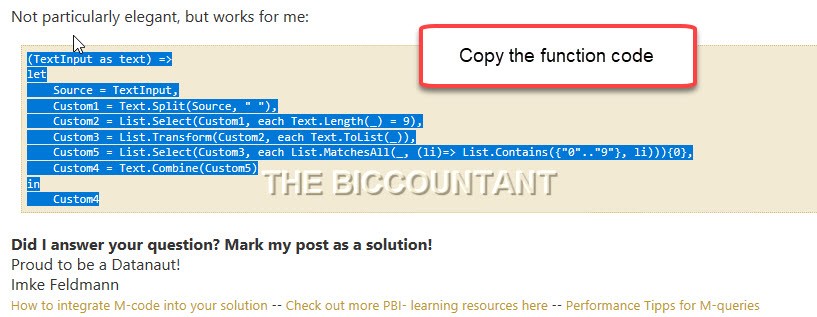
1. Copy the function code
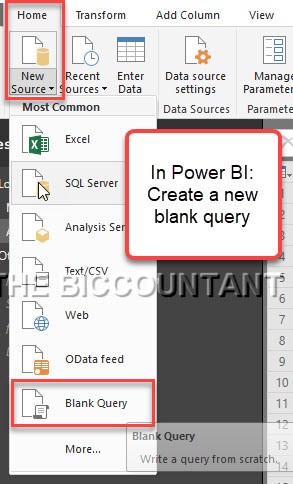
2. Create new blank query in the query editor
3. Open the advanced editor

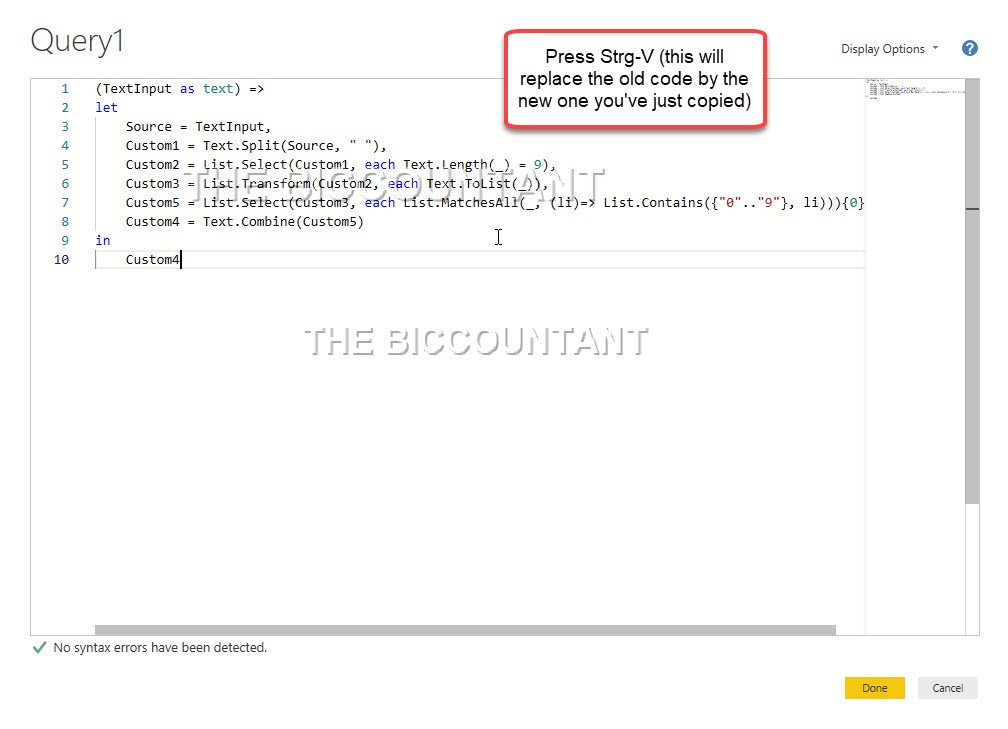
4. Replace existing function code by new one
5. Rename query (optional)

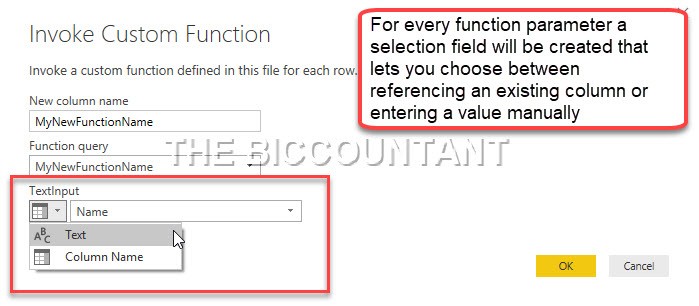
6. Invoke custom function

7. Edit function parameters
Enjoy & stay queryious 😉
2 thoughts on “Screenshot tutorial: Add a column with custom function code in Power Query”